We’re excited to announce our latest major release, Zotero 8. Zotero 8 builds on the new design and features of Zotero 7 and includes a huge number of improvements and refinements.
Redesigned Citation Dialog
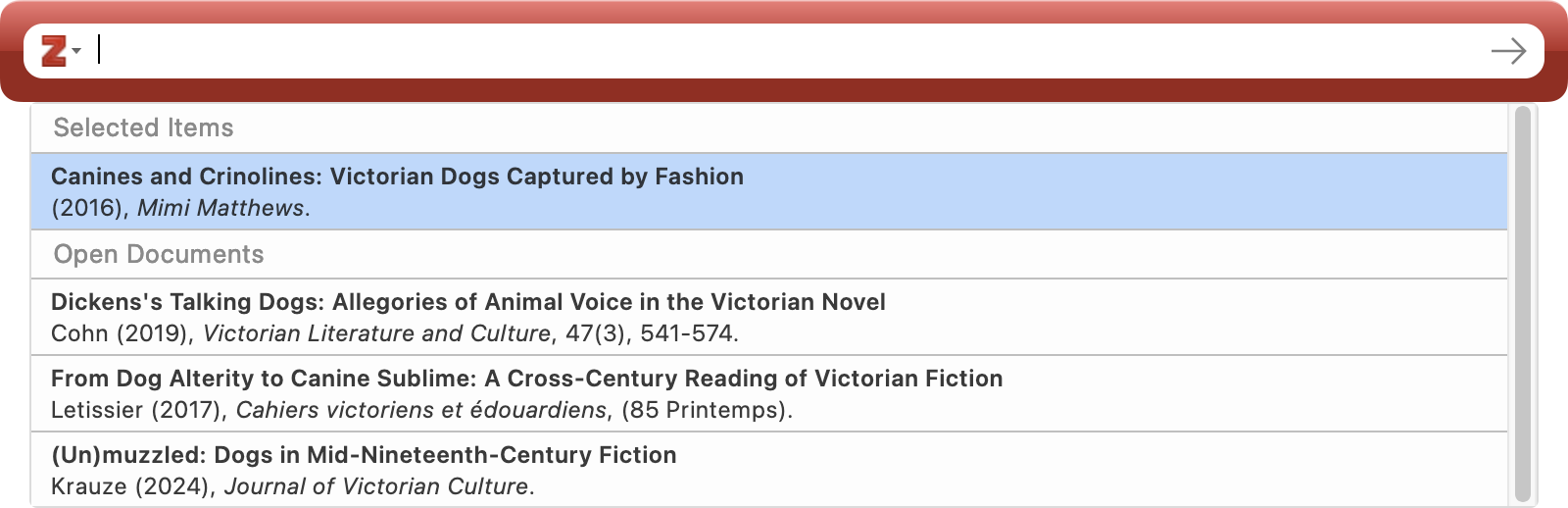
Zotero 8 introduces a new unified citation dialog, replacing the previous citation dialog (the “red bar”), the “classic” citation dialog, and the Add Note dialog (the “yellow bar”).
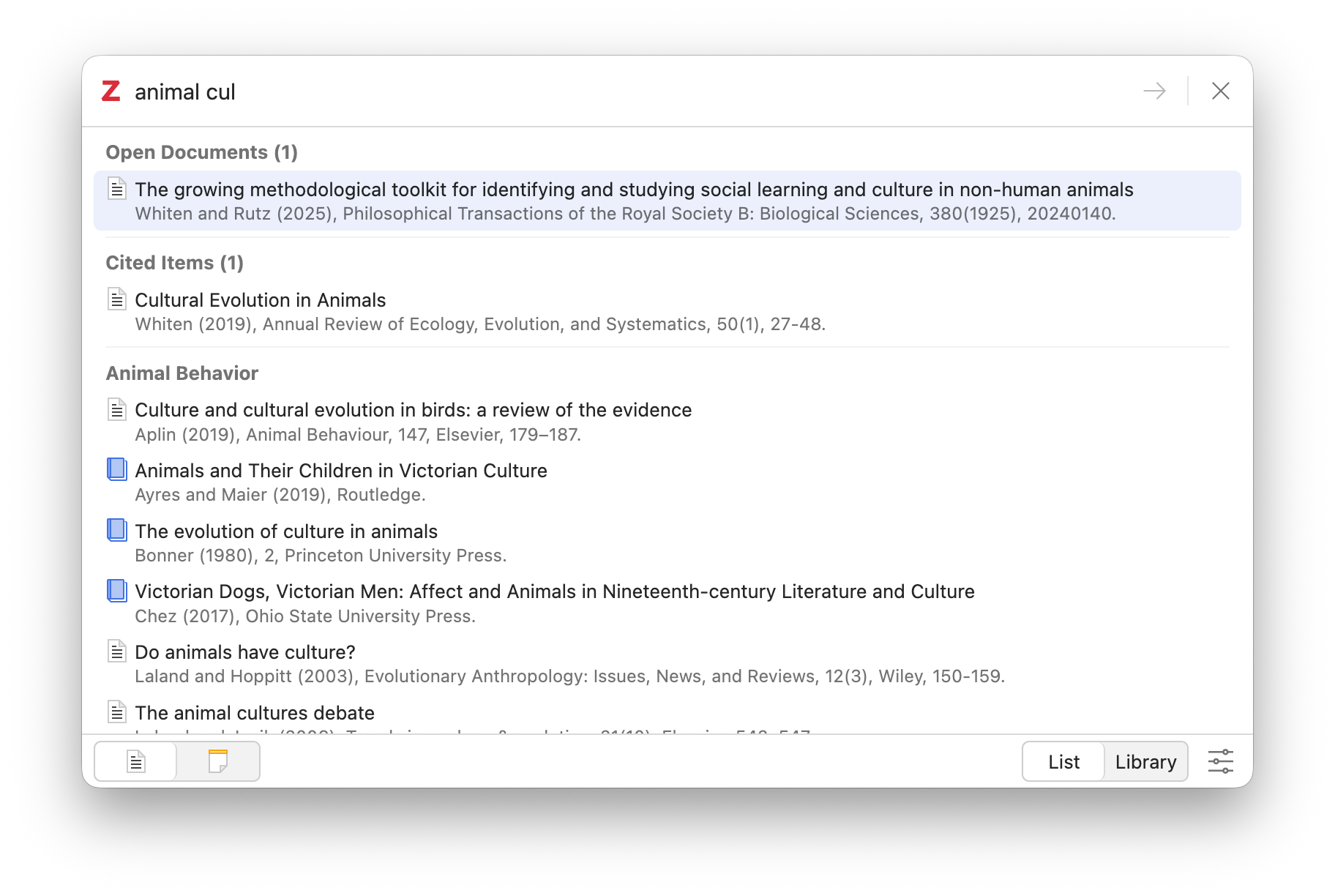
The new dialog has two modes: List mode and Library mode. List mode lets you quickly search for citations from across your Zotero libraries by title, creator, and year. Library mode includes a library browser, letting you find items in specific libraries or collections. You can switch between the two modes with a single click, preserving any added items or entered search terms. By default, it will open in the last mode you used, but you can choose a different default mode in the settings.
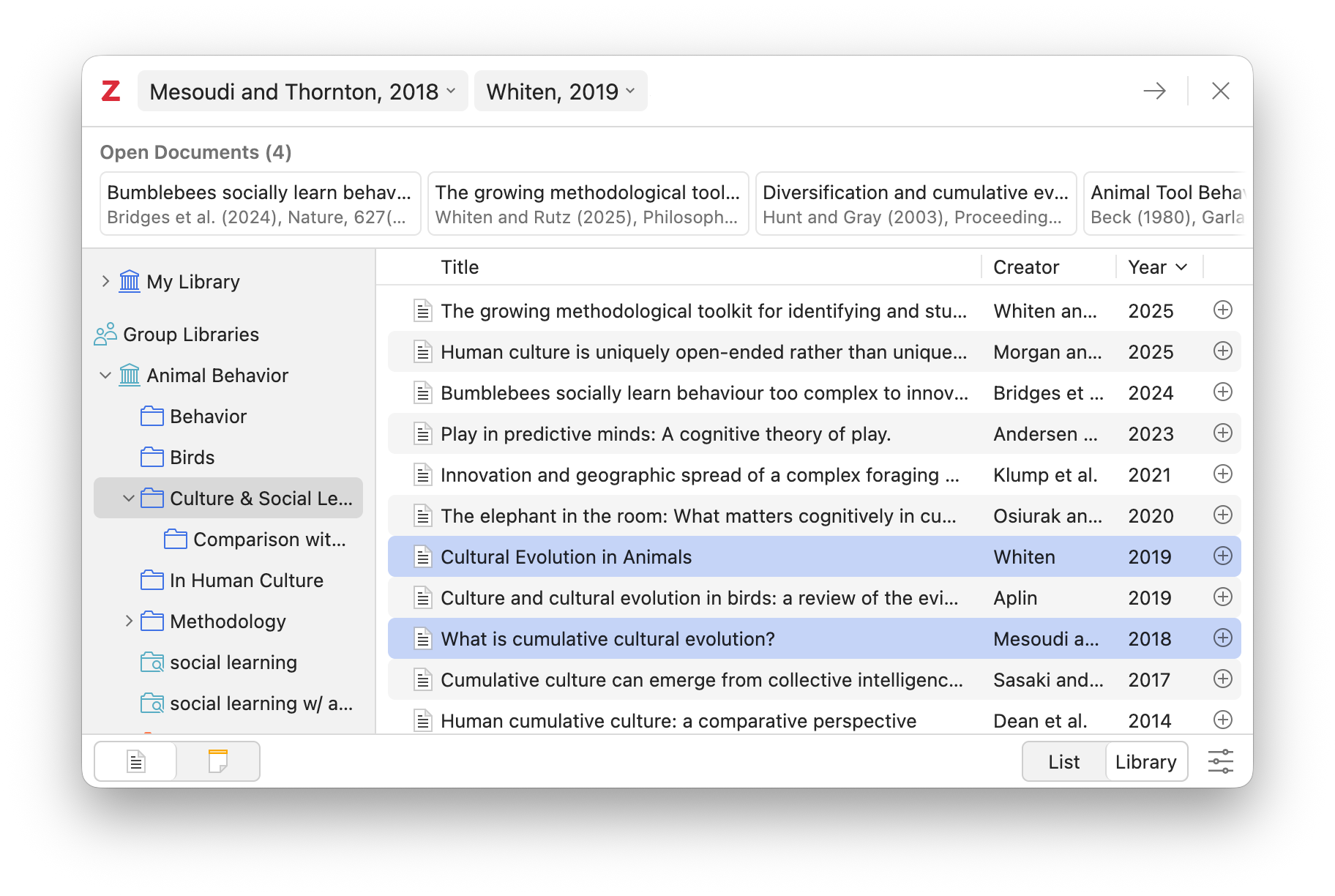
In Zotero 7, we added the ability to quickly add citations for selected items and open documents. In the new dialog, these options are available in both List mode and Library mode, so you can make these quick selections even if you otherwise prefer to add items via the library browser.
As before, once you’ve selected an item, you can click on its bubble to customize the citation with a page number, prefix, etc. It’s also now possible to add any locator — not just a page number — right from the search bar by typing the full or short name (e.g., “line 10” or “l. 10”) after the citation and pressing Enter/Return.
You can switch between adding citations and adding notes using buttons in the bottom left, corresponding to the Add/Edit Citation and Add Note buttons in your word processor.
(For those coming from the classic dialog, note that there’s no text field to make manual edits to citations. It’s been possible to edit citations directly in the document for many years, which is why the red bar didn’t include such a text field either. More importantly, though, such manual edits should be avoided in almost all cases. Instead, customize the citation via the citation dialog, which will allow Zotero to continue to update the citation as necessary.)
Annotations in the Items List
Annotations you make on PDFs, EPUBs, and webpage snapshots now show up under their parent attachments in the items list.
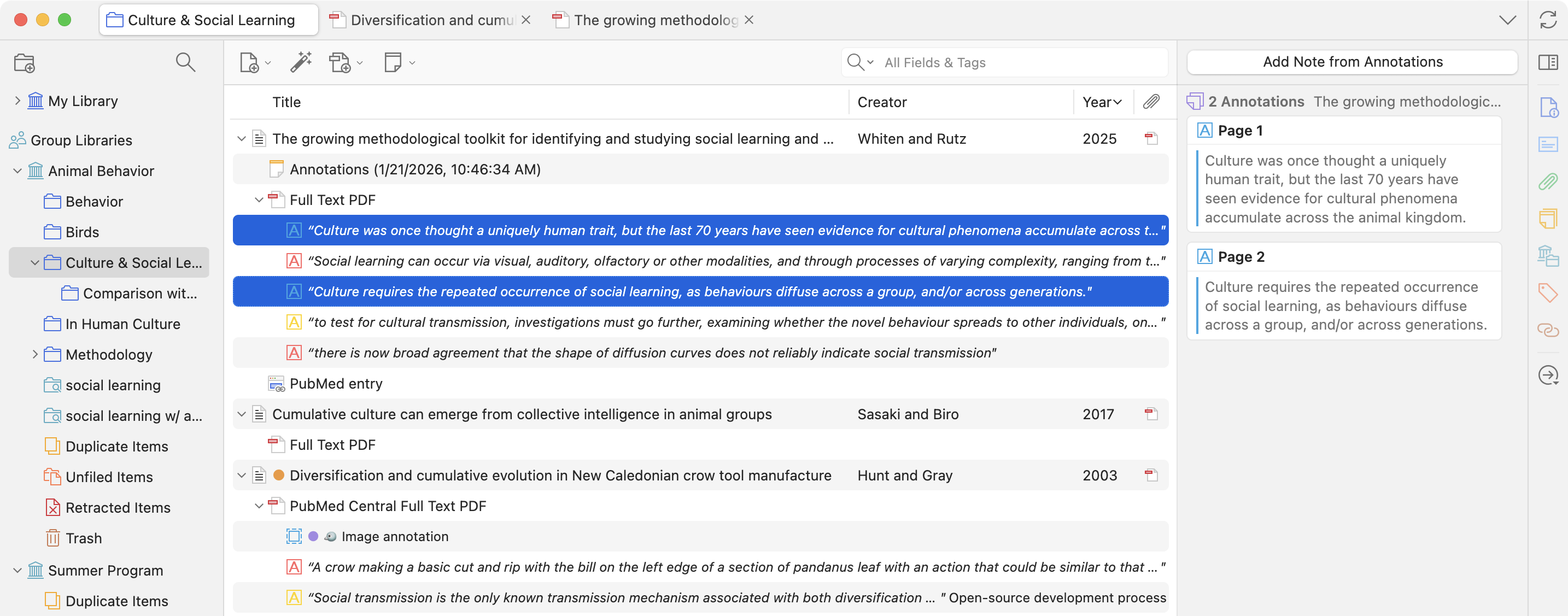
Showing annotations in the items list makes it easier to view annotations across a library or collection, and it also makes it possible to search for annotations directly. For example, you can search for all annotations in a collection with a given tag and then create a note from those annotations or copy them to an external text editor with Quick Copy.
In Advanced Search, you can use “Item Type” “is” “Annotation” to match annotations or use the Annotation Text and Annotation Comment search conditions to search for specific parts of the annotation.
You can assign tags to selected annotations by dragging them to the tag selector, just like other items.
Selected annotations show up in the item pane, grouped by top-level item.
Reader Appearance Panel with Theme Support
We’ve added a new Appearance panel in the reader that provides quick access to view settings and introduces support for reader themes.
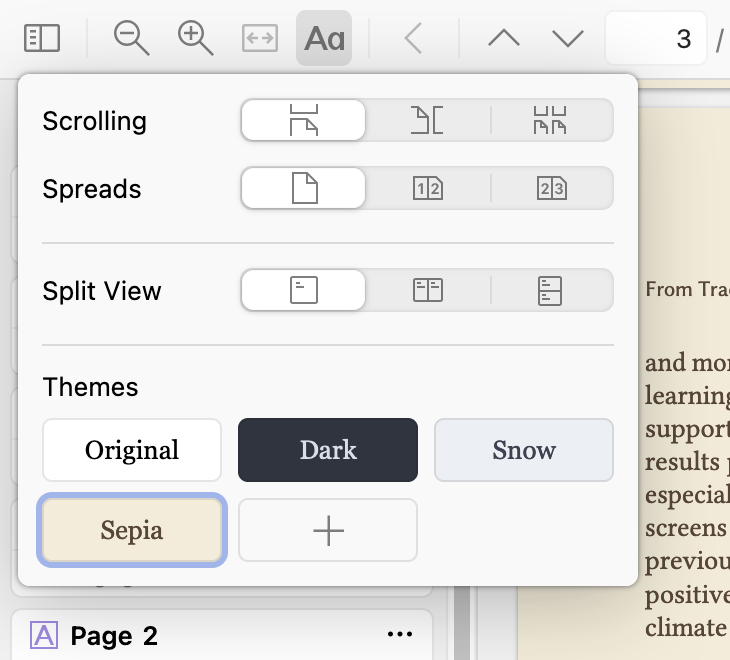
The view settings are per-document settings. Themes are applied globally for all documents, including in the attachment preview in the item pane, and apply to PDFs, EPUBs, and webpage snapshots.
We offer a number of built-in themes (“Dark”, “Snow”, “Sepia”), and you can create custom themes just by specifying a foreground and background color. (Some other theme engines require additional accent colors, but we’ve tried to make this as simple as possible for users by automatically adjusting other colors based on the foreground and background colors.) You can set a different theme that applies to light mode and dark mode.
The themes replace the previous on-by-default “Use Dark Mode for Content” option, which inverted images in dark mode. We’re now simply darkening images a bit when using a dark theme. Images and ink annotations in the reader sidebar and note editor are now only darkened as well (and only when Zotero itself is in dark mode).
When possible, we also try to apply themes to PDF pages containing full-page images, such as scanned papers, by replacing whitish/dark colors with theme colors. (Otherwise we simply darken the page slightly.)
Note Tabs
It’s now possible to open notes in tabs in addition to separate windows. Note tabs fill the whole window, with wide margins for better readability and a clean, distraction-free space for note-taking.
By default, double-clicking a note in the items list will open it in a tab. You can choose to open the note in the other space from the context menu, and you can change the default behavior using the “Open notes in new windows instead of tabs” setting in the General pane of the settings.
Notes in tabs have a separate font size setting in the View menu.
Reading Mode for Webpage Snapshots
Reading Mode reformats webpage snapshots for easier reading, with unnecessary page elements removed. You can adjust line height and other view options from the Appearance panel.
Improved Tabs Menu
We’ve reworked the tabs menu to make it faster to interact with via the keyboard.
You can now press Ctrl/Cmd-; to bring up the menu at any time.
Once the menu is open, it simultaneously accepts search input, up/down navigation, and row selection, without the need to move between different parts of the menu. You can simply start typing the name of an open tab and then press Enter/Return to switch to it once you’ve narrowed down the list.
It’s also possible to quickly close multiple tabs by moving between the row close buttons with up/down and pressing space bar to close a tab.
Continuous File Renaming
Zotero now automatically keeps attachment filenames in sync with parent item metadata as you make changes (e.g., changing the title). In previous versions, while Zotero would automatically rename files when you first added them to your library, if you later edited the item’s metadata, you would need to right-click on the attachment and select “Rename File from Parent Metadata”.
You can configure which file types renaming applies to from the General tab of the Zotero settings.
After upgrading to this version, existing eligible files that don’t match the current filename format won’t be automatically renamed, but you can choose to rename them en masse from the Zotero settings. Zotero will also prompt you to rename all files if you change the filename format.
“Rename File from Parent Metadata” has been removed from the item context menu. If a filename doesn’t match the configured filename format (e.g., because automatic renaming is disabled or you changed the format but didn’t choose to rename all files), you can click the “Rename File to Match Parent Item” button next to the filename in the attachment’s item pane to rename it.
New Attachment Title Options
Zotero 7 introduced more consistent handling of attachment titles, preserving simpler, less-redundant titles (e.g., “Full Text PDF” or “Preprint PDF”) in cases where the title was previously changed to match the filename. Zotero 8 further refines its renaming and titling logic when adding multiple and/or non-primary attachments, to bring the functionality better in line with the intended behavior.
We’ve also added a “Normalize Attachment Titles” option under Tools → Manage Attachments to update old primary attachments with titles matching the filename to use simpler titles such as “PDF”.
While we recommend the default behavior, allowing Zotero to rename primary files and keep them renamed while using simpler titles in the items list, if you really prefer to view filenames instead of titles, you can now enable “Show attachment filenames in the items list” option in the General pane of the settings.
ARM Linux Support
Zotero 8 adds a version for Linux running on ARM64 devices. This includes ARM-based Chromebooks, Apple Silicon Macs running Linux (Linux VMs, Asahi Linux), and Raspberry Pis.
If you’ve been unable to run Zotero on your ARM-based device, or you’ve been running the x86_64 version under emulation, give it a try.
User Interface Improvements
We’ve made a number of changes across the interface to address common requests:
- A new button in the library tab allows you to quickly close the item pane without dragging its edge or using the menus.
- You can reorder item pane sections by dragging their icons in the side navigation bar.
- You can drag items, collections, and searches into the trash.
- You can drag attachments, notes, and related items from the item pane (e.g., to copy files to the filesystem or use Quick Copy).
- Collections automatically expand when you drag over them, making it easier to drop collections or items into subcollections.
- You can delete attachments from the item pane.
- Tabs maintain their size as you close them for faster closing of multiple tabs.
Tag Autocomplete and Note Field in Zotero Connector
With Zotero 8, the Zotero Connector save popup can autocomplete tags in your Zotero library and allows you to add a note to items as you save them.
And Much More
Zotero 8 includes much more than we can list here. See the changelog for additional details.
System Requirements
Zotero 8 requires macOS 10.15 or later, Windows 10 or later, or a Firefox 140–compatible Linux system.
Faster Future Releases
Going forward, we’re changing how we put out Zotero releases. Read about Zotero’s new release schedule.
Get Zotero 8
If you’re already running Zotero, you can upgrade from within Zotero by going to Help → “Check for Updates…”.
Don’t yet have Zotero? Download Zotero 8 now.
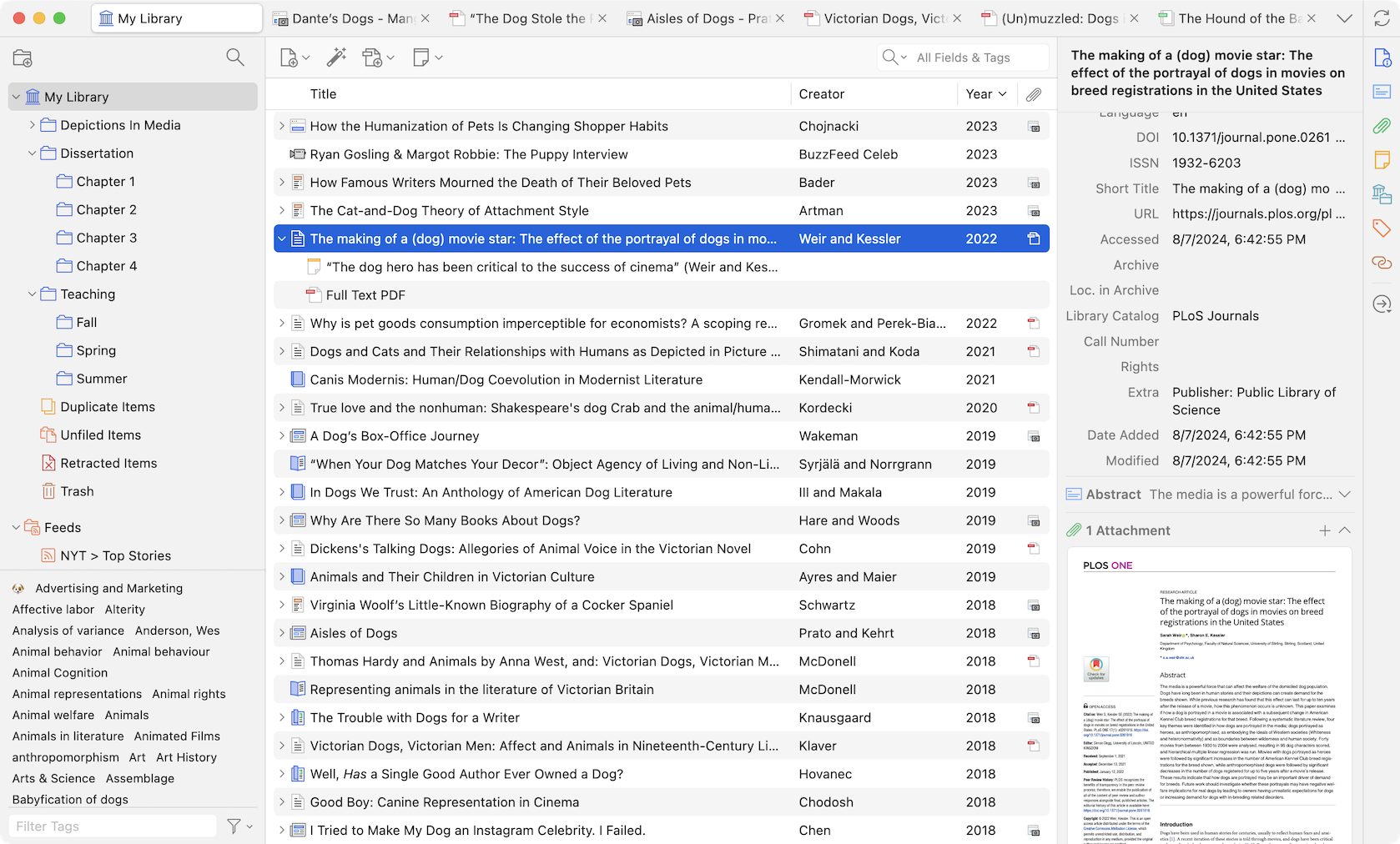
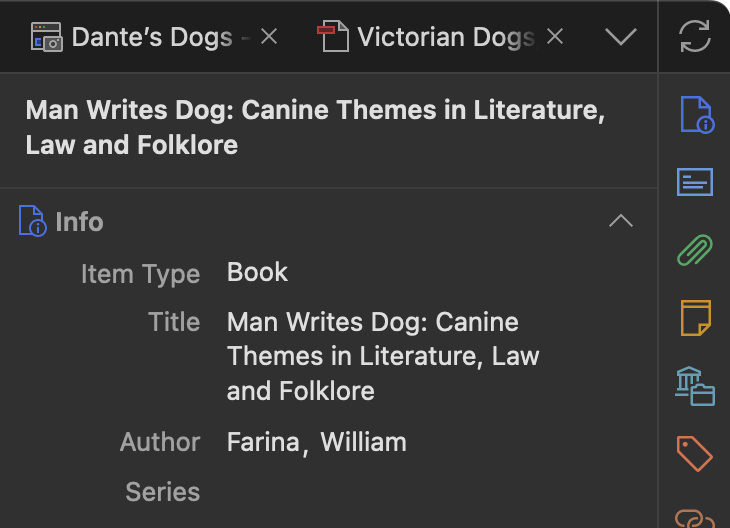 We heard the calls: Zotero 7’s new design includes a gorgeous dark mode. We know dark mode is important to many people, so we wanted to do it right: every part of the new design was created with dark mode in mind.
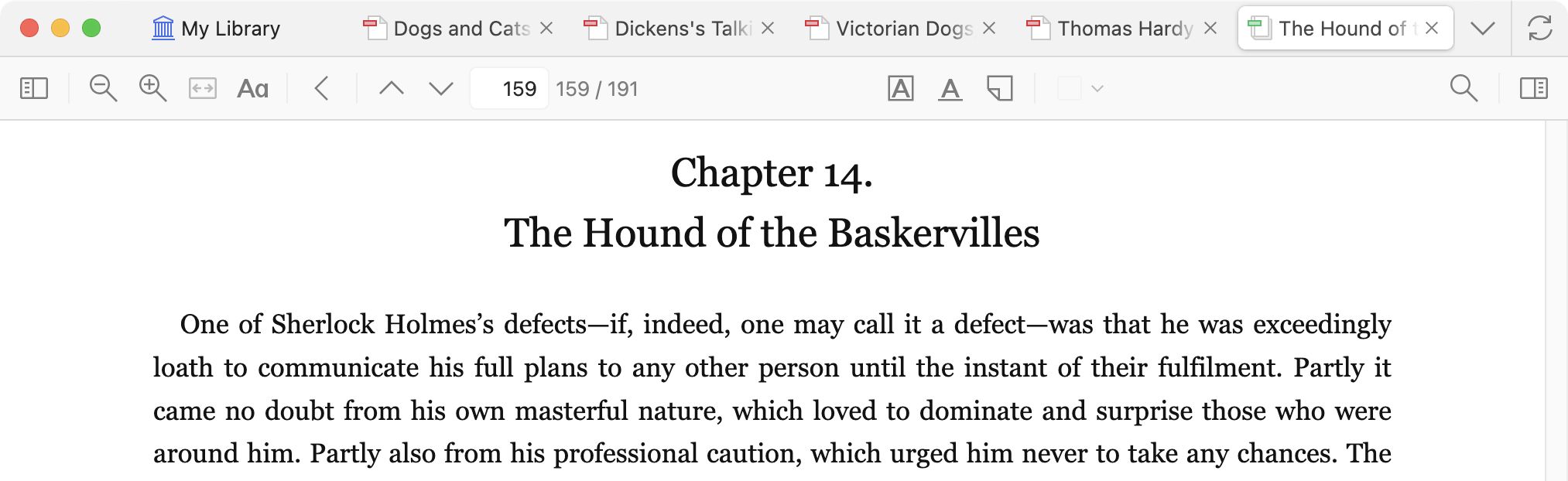
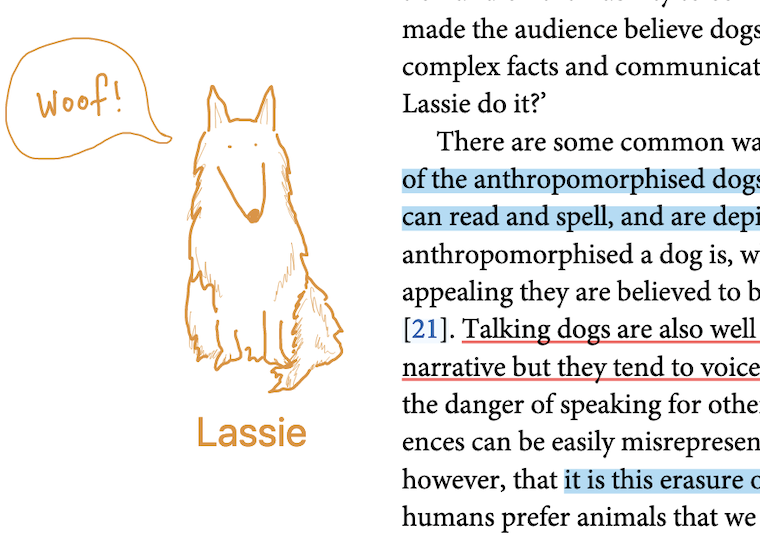 We’ve also added support for creating ink, underline, and text annotations. Ink annotations were already supported on iOS, and it’s now possible to create them in the desktop app as well. (This works best if you have a touchscreen PC or stylus.)