
Zotero 10
We’re excited to announce Zotero 10, which adds a host of powerful new features for searching and managing your library, a major improvement to Read Aloud, and a new Reading Mode for PDFs.
More-Advanced Advanced Search
Advanced search is now available via a filter button in the quick-search bar, and it opens right above the items list in the main window. You can filter any view, including collections or saved searches, and immediately work with the results.
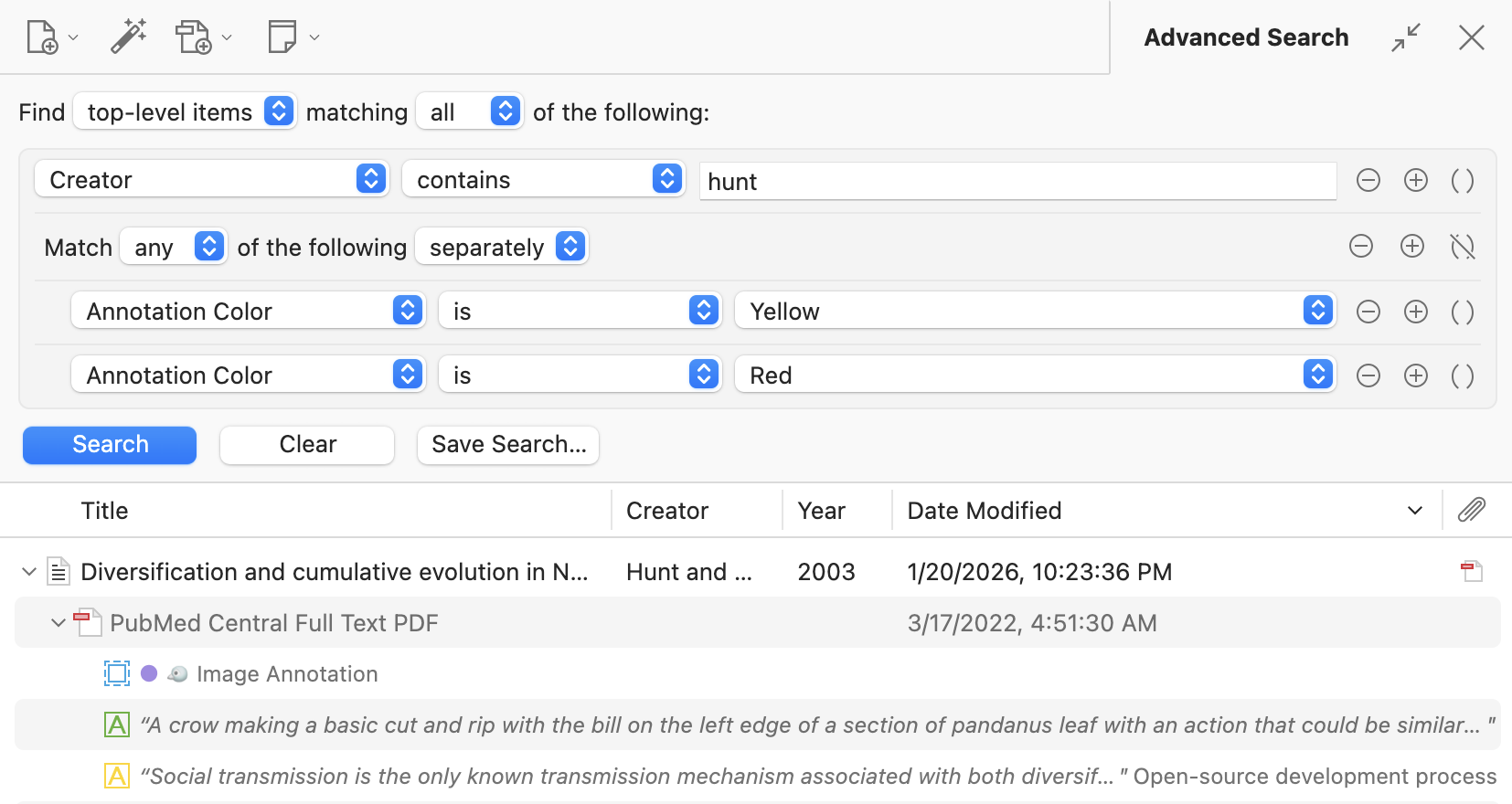
Searches are now much more powerful, with support for nested condition groups and automatic mapping of conditions across levels of the hierarchy. It’s now trivial to, say, search for top-level items with a given author AND (a descendant annotation that is either yellow OR red). For any search, you pick what result level you want to find (e.g., “top-level items” or “annotations”), and the search conditions you use will automatically be mapped to that result level. So you can find top-level items even if you’re searching for annotation content two levels below or find all annotations underneath top-level items with a given tag. Searching for attachments within collections or combining conditions across the hierarchy used to require chaining multiple saved searches, and those searches can now be represented easily in a single search.
Clicking the advanced-search button with something entered into the quick-search bar will automatically populate an equivalent advanced search. Since the advanced-search pane persists when you click between collections, this also addresses the longstanding request to be able to pin searches when moving between collections.
Finally, we’ve added various new search conditions for annotations (e.g., “Annotation Color”) and counts (e.g., “# of Notes”) as well as “is empty” and “is not empty” operators.
Accent-insensitive searching and other search improvements
Most searching throughout Zotero now ignores accents, typographic characters, and formatting. Searching for “cafe” will find “café”, “can't” will find “can’t”, and “h2o” will find “H<sub>2</sub>O” and “H₂O”, and vice versa.
Full-text content searches — the “Attachment Content” condition in advanced search and quoted phrases in the quick-search bar — are also now much faster, returning results nearly instantly instead of scanning files on disk.
Searching for Chinese, Japanese, or Korean text in the quick-search bar previously matched attachment content containing any individual character of the search terms unless the search was quoted. Unquoted CJK searches now match the full phrase, and do so quickly.
We’ve also overhauled how Zotero processes attachment content in the background, indexing new content faster and more reliably. If you’re using syncing, be sure that “Sync full-text content” is enabled in the Sync settings, which allows you to search full-text content already indexed elsewhere even if a file isn’t available locally (e.g., when using on-demand file downloads) and avoids unnecessary indexing work on multiple devices.
Multi-Collection Selection
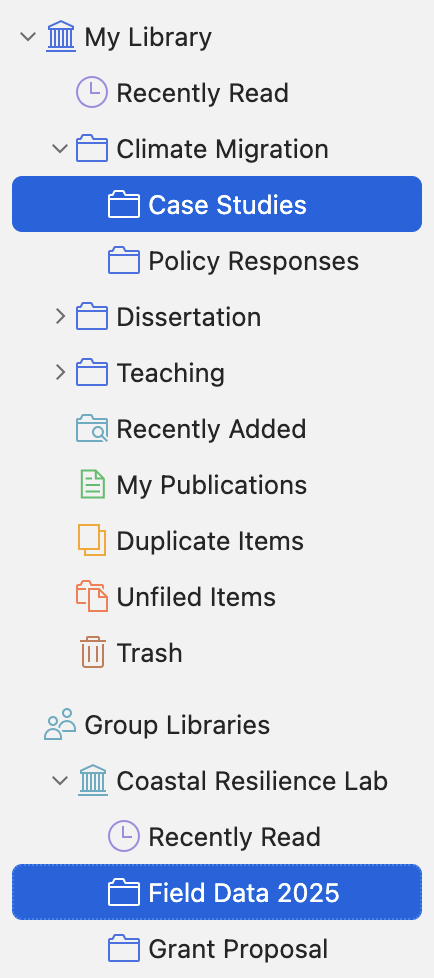
It’s now possible to select multiple rows in the collections pane and view items from across all of those views.
For example, you can now select two collections to quickly see all the items from both of those collections, or select a few saved searches to see the combined results from those searches.
Multi-selection also works across libraries, so you can view, search, and interact with items from different libraries. The items list groups items by library, with a sticky header for the current library shown at the top as you scroll up.
Select All (Cmd/Ctrl-A) automatically expands to all rows within the same parent or parents, so you can select two subcollections under two different parents and quickly select all of their siblings. (This might be an alternative to using View → Show Items from Subcollections.) Select All on a library will select all other libraries in your database.
All of this works with the new in-window advanced search, so you can perform complex searches across multiple collections or even across all libraries in your database.
Undo Support
You can now undo and redo many operations via Edit → Undo/Redo or the standard platform keyboard shortcuts. If, say, you overwrite the wrong field by mistake, or you drag a collection somewhere by mistake, you can just press Cmd/Ctrl-Z to undo the changes.
Not all operations are currently covered (e.g., deleting an annotation from the items list), but we’ll be looking to extend support to more operations in future updates.
Batch Editing
You can now easily edit multiple items at once. Simply select multiple items in the items list, click “Edit Multiple Items…” in the item pane, and then make changes, and the changes will be applied to all selected items. Fields that have multiple values will show “Multiple”, and clicking in the field will show the available values (and “Clear all values”).
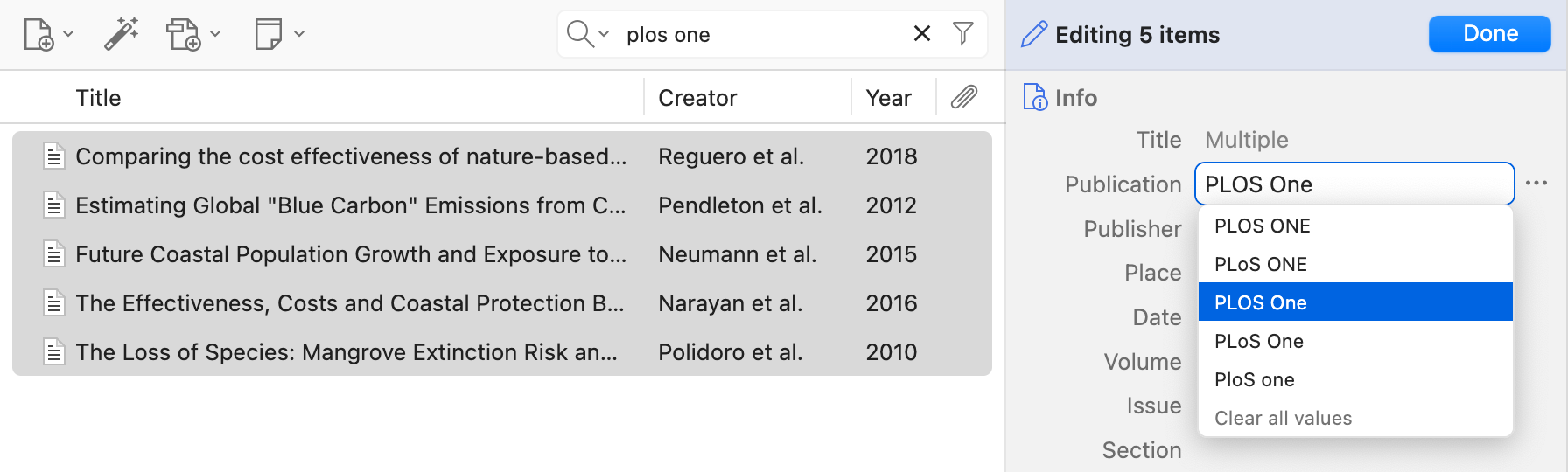
This works with the new undo support, so if you make an accidental change across many items, you can easily undo it. The new in-window advanced search also makes it easy to find particular sets of items to edit.
It’s not currently possible to edit item type, creators, or tags on multiple items at once, but we hope to support those in future updates.
Smarter Read Aloud
Read Aloud should now do a much better job of skipping in-text citations, headers, and footers. It’ll also skip past tables, figures, and equations instead of reading out every table cell and axis label, and it’ll read paragraphs straight through even when they continue in the next column or on the next page.
For large documents, it should also start speaking more quickly.
This is all based on a new custom document-analysis system that identifies different elements of a PDF, EPUB, or snapshot. We’re still refining this system, so if you find a document where Read Aloud is still reading things it shouldn’t — or skipping things it shouldn’t — let us know in the Zotero Forums.
By default, Read Aloud will also now highlight individual sentences as it reads them instead of highlighting entire paragraphs, and we’ve added dedicated buttons to skip ahead or back by sentence. If you prefer to have it highlight by word or paragraph instead, you can configure that from the General pane of the settings. (Word highlighting is available only for some voices.)
Reading Mode for PDFs
Zotero 10 adds Reading Mode for PDFs: a clean, reflowable view of the document, with adjustable font, size, and line spacing, and without the headers, footers, and multi-column layouts of the original. If an area of the PDF page can’t be represented as text (images, tables, figures), it’ll be rendered as shown in the original PDF, so you won’t miss any content.
Reading mode in most apps — if they even offer one — is read-only. In Zotero’s, you can keep annotating: you can highlight and underline text and add notes directly in Reading Mode, and those annotations show up in the normal PDF view as well. (Annotations made with the other tools — text, image, and ink — are shown only in the PDF view, though we plan to show them in the sidebar in a future version.) Your reading position carries over when you switch, too.
To turn it on, click the Reading Mode button in the reader toolbar.
Reading Mode is powered by the same custom document-analysis system behind the Read Aloud improvements, and we’re still refining it. If a document doesn’t look right in Reading Mode — missing text, mangled tables, etc. — let us know in the forums.
Other Changes
Zotero 10 includes many other improvements and fixes, including an improved Zotero Connector for Safari, a citation preview in the citation dialog, and dramatically lower memory usage from reader tabs. See the changelog for a more complete list of changes.
Get Zotero 10
If you’re already running Zotero, you can upgrade from within Zotero by going to Help → “Check for Updates…”.
Don’t yet have Zotero? Download Zotero 10 now.