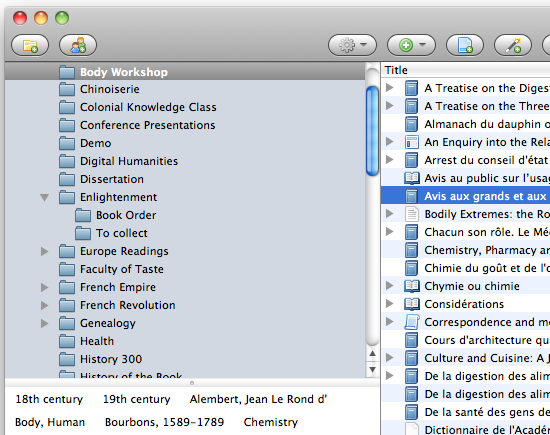
Zotero’s sorting functions make it easy to quickly find items in your library. At any moment you can click on the headers in your middle columns to sift through your library and organize it according to any of 16 different data fields.
To sort items in a collection, click on any of the information categories at the top of the middle column. For example, if you click on “Title,” all your items will be sorted alphabetically by title. If you click on “Title” again, the order will be reversed. Similarly, if you click on “Creator,” your items will be sorted alphabetically by creator, and if you click “Creator,” again the order will be reversed.
To sort by other categories, you can click on the icon in the top right corner of your center column. You will then see the dropdown menu illustrated to the right. Select any additional categories you would like to use for sorting. They will now appear in the center column and you can click on them to sort in just the same way you did with “Title” and “Creator”.
Two tips for sorting:
Sorting works in any view: All of Zotero’s finding and organizing features cascade. So, sorting like this works for basic search results, inside a collection, or when viewing all items with a particular tag. Moreover, sorting will work in any combination of tags, searches, and collections.
Sort to find duplicates: Sorting by title or creator can work as a great way to identify duplicates in your library. Before you delete a duplicate check which collections they are in. To see all the collections containing an item, select the item and then hold down the “Option” key on Macs the “Control” key on Windows, or the “Alt” key on Linux. This will highlight all collections that contain the selected item.
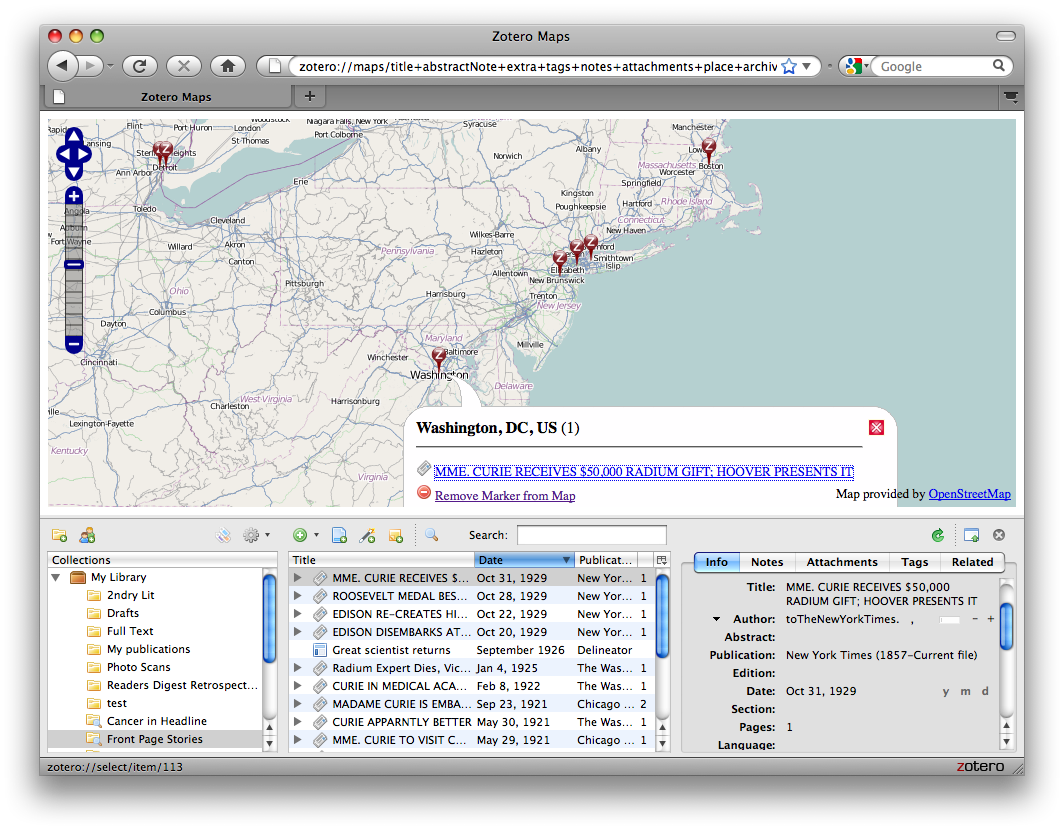
Maps are cool. Scratch that, maps are amazing. We here at Zotero are always trying to think up new ways to let you play with and visualize your library. So we jumped at the chance to visualize our libraries in a maps. We are excited to announce the release of the Zotero Maps plugin, available here. Developed by Entropy Free LLC and the Zotero project, this plugin allows Zotero users to browse their collections through geographic relationships among their items. In other words, to map your library and use those maps as navigation for your library. You can see it in action in the image below.
Once you install the plugin you can generate a map from a drop down in the Actions menu (the gear icon). This will prompt you to chose which fields you want Zotero Maps to search through for geographic terms to Map. Once you have selected the terms, the software will generate a map in your browser window. Zotero Maps uses OpenStreetMap to construct the map, and you can pan, zoom in and out, and drag your way around the map. You can also click on any of the pins in your map to see all of the items associated with that location.
What makes Zotero Maps particularly awesome is that it allows you to mine different individual information fields for place information. As shown in the image below, you can search any combination of item titles, tags, places of publication, abstracts, and your notes. Most excitingly, Zotero Maps can automatically extract locations appearing in the text of your PDFs and then plot these places on a map.
Potential Use Cases: Map Your Collection By Key Places:
Many records from library catalogs and journal databases come pre-loaded with geographic keywords. Zotero Maps lets you quickly see the relationships between the terms catalogers, authors, and publishers have assigned to the items in your collection. Similarly, as you apply your own geographic tags to items you can then explore those geographic relationships. Whether you’re looking at key locations in studies of avian flu, ethnographic work in the American southwest, or the history of the transatlantic slave trade, the tags associated with your items provide valuable geographic information.
Map Places of Publication:
In many cases places of publication include crucial information about your items. If your working on a project involving the history of the book, how different media outlets cover an issue, or how different journals present distinct scientific points of view, the places in which those items are published can provide valuable insight.
It’s official: Zotero has a ton of features. And there’s a good chance you’re not making use of some features that could make your research life a lot easier. To help spread the word about some of these features we are starting a new series of posts to help users make the most of Zotero.
For Part I of our series we start with manually adding items to your library. Zotero’s automatic captures make it easy to work with web resources, but not everything you need to use in your research is online. Zotero makes it easy to manually add items as well. Watch this video, or follow the steps below, to add anything to your library and attach any kind of files.
1. Click on the green plus (+) icon in the center column. Select the type of item you want to create from the drop-down menu. You can view more item types at the bottom of the menu. If the options do not fit your item exactly, try to find the kind of item that would contain the same fields. Once you select an item type, an blank item of that type will appear in your center column.
2. Manually enter the bibliographic information into the right column. Click on any of the fields in the right column to begin entering your information. If you have additional authors you can click on the + next to the first author to add additional fields. To enter an editor or other contributor, click on the “Author” label to reveal a drop-down menu that will let you select other creator types.
3. When you have finished entering the metadata, you can drag in attachments. You can attach any kind of file to any item by simply dragging the file from your desktop onto a Zotero item. You can then double-click the item to launch the file. If Firefox supports the file format it will simply display it in your browser. If the file format is not supported by Firefox, Zotero will launch whatever application your computer uses by default to open the file.
We’re excited to reveal that the Zotero project has begun preliminary development of a standalone version of the research software that will interact with browsers other than Firefox. Code has already been committed to Zotero’s open-source repository that provides a glimpse of how this new version might work. This proof of concept is allowing our developers to study how best to integrate Zotero with other popular browsers like Google Chrome and Microsoft Internet Explorer. Of course, Firefox is still an excellent web browser, and we’re confident that it will remain so for years to come. That said, we also want to provide the Zotero community with the opportunity to use other software when they choose to do so, or when they face institutional barriers to using Firefox.