About ten seconds after the initial excitement died down, questions regarding Zotero Everywhere‘s release date started rolling in. While we’re not quite ready to provide a firm timetable, we’re happy to report that within days of our announcement our skilled team already had alpha code for standalone Zotero in hand and accessible via our fully open code repository. This software currently requires users to jump through a few tricky hoops to build and install, but within the next few weeks we’ll package an alpha release that’s more easily accessible to bleeding edge testers and developers.
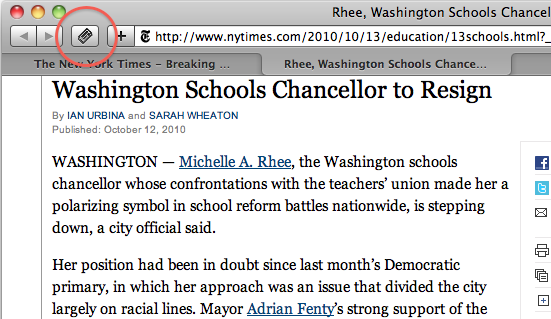
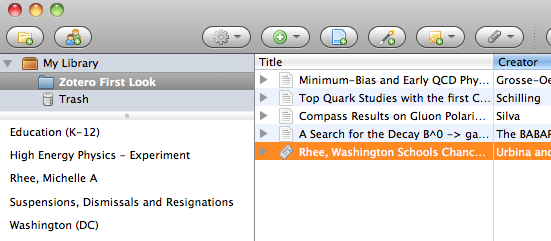
In the meantime, I’d like to offer a peek at what we have so far. All core functionality, including server sync and integration with Microsoft Word, is already in place. And the most exciting part of standalone Zotero, integration with other browsers, is well underway. Here are a few screenshots of the code in action just a few moments ago. I’ve added a couple of red circles to draw attention to the new import icons in Chrome and Safari, but otherwise this is exactly what the software looks like now.
Integration with Google Chrome. Note the Zotero folder icon, just like in Firefox! Search results work beautifully.
Integration with Apple Safari. We’ve customized Zotero to take advantage of Safari’s distinctive look and feel, and here we’re grabbing a newspaper article.
Standalone Zotero showing the above items after one-click import. I actually had Chrome and Safari open and firing items at Zotero simultaneously.
Along with standalone Zotero, work is progressing rapidly with Zotero Everywhere’s expanded API, as well. Stay tuned for more news on that front soon!
Team Zotero is hiring a full-time Outreach Specialist! Do you love Zotero? Love libraries? Love stickers and t-shirts? If you answered yes to any of these questions, you should consider joining us!
The Outreach Specialist will hold a wide range of exciting and critical responsibilities, including: leading project outreach; monitoring the support forums; building relationships with libraries and scholarly organizations; authoring software documentation; managing the project’s social media presence; representing the project at a range of conferences and events; and developing and leading workshops for higher education administrators, librarians, and scholars.
We are looking for an energetic, well-organized individual with excellent written and oral communication skills. The ideal candidate will have: a B.A. or advanced degree in library science, the humanities, or social sciences; proven communication and promotional skills; and experience working on software projects. Experience with Zotero and its user community highly desirable.
For more information, please visit https://jobs.gmu.edu and search for position number 10378z.
We’re delighted to announce Zotero Everywhere, a major new initiative generously funded by the Andrew W. Mellon Foundation. Zotero Everywhere is aimed at dramatically increasing the accessibility of Zotero to the widest possible range of users today and in the future. Zotero Everywhere will have two main components: a standalone desktop version of Zotero with full integration into a variety of web browsers and a radically expanded application programming interface (API) to provide web and mobile access to Zotero libraries.
Zotero is the only research software that provides full and seamless access to a comprehensive range of open and gated resources. With a single click, Zotero users have long been able to add a complete journal article, book, or other resource to their personal libraries, including bibliographic metadata and attached files like PDFs. Until now, this powerful functionality has been tied exclusively to the Firefox browser, which not all researchers can or want to use. Today we are announcing support for Google Chrome, Apple Safari, and Microsoft Internet Explorer, which account for 98% of the web’s usage share. Plugins for these browsers will soon allow users to add anything they find on the web to their Zotero libraries with a single click, regardless of the their browser preferences. Rather than use the Zotero pane in Firefox, users will have the new option of accessing their libraries via a standalone desktop version of Zotero, available for Mac, Windows, and Linux.
Zotero’s web API offers any application developer the ability to access individual and group libraries via a simple, human-readable programming interface. Until now, this API has been “read-only” — users could view their libraries but they could not change them via the web or via the API. Today we’re announcing the opening of Zotero’s write API to the public over the coming months. Because Zotero “eats its own dog food” — we already use the very same programming interface to serve pages at zotero.org — application developers can be confident that the public API will ultimately provide all the same functionality used internally at the Zotero project. With full read/write access to bibliographic data, attached files like PDFs, and the citation formatting engine, developers will be able to integrate a full range of Zotero features into their own web, mobile, and desktop applications, and users will be able to take advantage of this functionality at zotero.org.
Zotero Everywhere responds to the constantly changing needs of Zotero’s enormous research community. Downloaded millions of times since 2006 and used by hundreds of thousands of researchers daily, Zotero has grown to the world’s largest and most diverse online research community, with nearly 50 million library items presently synced to zotero.org. In addition to sharing their own individual libraries, Zotero users have formed over 25,000 collaborative research groups to pool references, share files, and coauthor manuscripts. By providing new ways of accessing and integrating this vast array of data, Zotero Everywhere will ensure that Zotero continues to be the catalyst for the next generation of research and scholarship.
There are tons of ways to get, books, articles, web pages, and any other kind of item into Zotero. So many, in fact, that we thought we needed this to make this short screencast. It covers six ways to get things into Zotero. You might just be surprised at how many ways there are to get information into your Zotero library.
The video covers the following six ways to get things into Zotero:
1. Location Bar Icons: When you visit library websites, journal databases, and many other Zotero enabled sites you can click the icons that appear in the location bar to save citation information in your Zotero library.
2. Create New Item from Current Page button: Clicking the Create New Item from Current Page button in the Zotero toolbar creates a web page item and archives a copy of the page for you to return to later.
3. Retrieve Metadata for PDFs: Zotero can also attempt to identify PDFs you have saved to your computer. Just drag them into the middle column, right click on them and select “Retrieve Metadata for PDF”. If Zotero can find the PDF in Google Scholar, it will add its citation information to your Zotero library.
4. Look up Items by Unique Identifier: If have a DOI, ISBN, or PubMed ID Zotero can look up its citation information.
5. Manually Adding Items: Click the green New Item button in the Zotero toolbar and select the appropriate item type to add a blank item to your library. You can fill in the data in the right column.
6. Importing Records from Other Tools: Many users come to Zotero with extensive collections stored in other reference management software. To import entire collections into Zotero, click on the gear icon and select “Import.” Browse to your file, select it, and click open.