
Adding Items to Zotero#
This page describes the various ways to add items (e.g., books, journal articles, web pages, etc.) as items in Zotero. To learn more about adding files (such as PDFs or images), please see the files page.
Via your web browser#
To use Zotero properly, you need to install the Zotero Connector for Chrome, Firefox, Edge, or Safari, in addition to the Zotero desktop app.
The Zotero Connector’s save button is the most convenient and reliable way to add items with high-quality bibliographic metadata to your Zotero library. As you browse the web, the Zotero Connector will automatically find bibliographic information on webpages you visit and allow you to add it to Zotero with a single click.
For example, if you’re on the main page for a journal article, the save button will change to the icon of a journal article (circled in red):

On a library catalog entry for a book, the save button will show a book icon:

Clicking the save button will create an item in Zotero with the information it has identified.
On many sites, Zotero will also save any PDF accessible from the page or an open-access PDF that can be found for the saved item.
Generic Webpages#
Some webpages don’t provide any information that Zotero can recognize. On these pages, the save button will show a gray webpage icon. If you click the save button on these pages, Zotero will import the page as a “Web Page” item with a title, URL, and access date. See Saving Webpages below.
Firefox:

Safari:

PDFs#

If you are viewing a PDF file in your browser, the save button will show a PDF icon. Clicking this button will import the PDF file alone into your library and then automatically attempt to retrieve information about it. While this will often produce good results, it is usually better to use the save button from the publication’s abstract page or catalog entry, as described above, if there is one.
If you save a PDF directly and Zotero isn’t able to retrieve metadata, it will leave the PDF as a standalone attachment. To add metadata, you’ll need to create a parent item, either by saving a regular bibliographic item as described above and dragging the PDF on top of it or by right-clicking on the PDF, choosing Create Parent Item, and entering an identifier such as a DOI or ISBN. If all else fails, you can click Manual Entry after selecting Create Parent Item and manually enter metadata for the item.
Multiple Results#
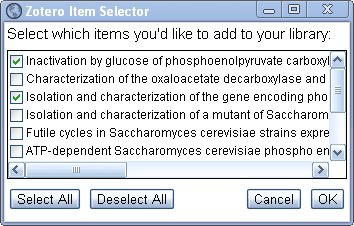
On some webpages that contain information about multiple items (e.g., a list of Google Scholar search results), the save button will show a folder icon. Clicking this folder icon will open a window where you can select the items that you want to save to Zotero:

Saving to a Specific Collection or Library#
After you click the save button, a popup will appear indicating which Zotero collection the item is being saved to. If you want to save the item to a different collection or library, you can change the selection there, as well as enter tags to assign to the new item.
Data Quality and Choosing a Translator#
The quality of the data Zotero imports is determined by the information supplied on the webpage. Some websites include high-quality data for tools like Zotero in the page itself (“embedded metadata”). Other websites provide only limited metadata (e.g., only the title of a blog post) or no metadata at all. For many sites, Zotero has website-specific “translators” to obtain the best quality metadata. Zotero recognizes almost all library catalogs, most news sites, research databases, and scientific publishers. (For more information, see our compatible websites list.) Metadata for the same item may vary in quality across sites providing it. For example, importing an item from the publisher’s website will generally yield much better data than importing from Google Scholar.
Zotero will generally choose the best translator available for each site automatically. You can choose an alternative translator by right-clicking on the Zotero save button (or the page background in Safari) and choosing one of the available options. If a website isn’t importing properly, please report it on the Zotero Forums and provide the webpage URL.
Add Item by Identifier#
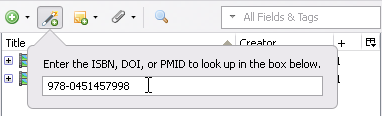
You can quickly add items to your library if you already know their ISBN, DOI, PubMed ID, arXiv ID, or ADS Bibcode. Click the Add Item by Identifier button ( ) in the toolbar, type or paste in the identifier, and press Enter/Return. To add more than one item, separate identifiers by spaces, commas, or line breaks.
To look up metadata, Zotero uses Library of Congress, WorldCat, and other catalogs for ISBNs, CrossRef and other registries for DOIs, NCBI PubMed for PubMed IDs, arXiv.org for arXiv IDs, and ADS for ADS Bibcodes.
Adding PDFs and Other Files#
As explained above, when possible, we recommend saving items using the Save to Zotero button in your browser from the primary webpage (e.g, a journal article’s abstract page) rather than adding PDFs directly. The Save to Zotero button will usually save high-quality metadata and also automatically download the relevant PDF if you have access to it.
If there’s no primary webpage, you can click the Save to Zotero button while viewing the PDF in your browser to save the PDF directly.
If you have a local PDF or other file on your computer — for example, if you received a file via email — you can drag it to Zotero, either onto an existing item to create a child attachment or between items to create a standalone attachment. You can also add an attachment by clicking “Add Attachment” in the Zotero toolbar and choosing one of the options.
Standalone Attachments and Parent Items#
Attachments can be either child items or standalone attachments. Standalone attachments can’t have bibliographic metadata or child notes, so in most cases you’ll want to convert them to child items under regular parent items.
When you add a PDF directly, Zotero will initially save it as a standalone attachment and then automatically attempt to retrieve metadata for it and create a parent item. This should work well for most academic PDFs (though it may sometimes yield lower-quality metadata than using the Save to Zotero button on the article page). For other documents, while Zotero can sometimes extract basic information (title, author), you shouldn’t expect that — anything can be distributed as a PDF, but that doesn’t mean there’s any standard metadata available for it.
If Zotero isn’t able to retrieve metadata for the PDF, you’ll be left with just the standalone attachment. You have a few options:
- If you can find a source for metadata online, you can save a regular bibliographic item by using the Save to Zotero button on the article page and drag the attachment item onto the new item.
- If you have a DOI, ISBN, or other identifier, you can right-click on the attachment item, choose Create Parent Item, and enter the identifier to retrieve metadata.
- If all else fails, you can click Manual Entry in the Create Parent Item window to enter metadata manually.
Saving Webpages#
With Zotero, you can create an item from any webpage by clicking the save button in the browser toolbar. If the page isn’t recognized by a translator, you’ll see the gray webpage icon. If the page does have a recognized translator, you can force Zotero to save a Web Page item instead by right-clicking (click-and-hold in Safari) on the Zotero save button and choosing “Save to Zotero (Web Page with/without Snapshot)”
Firefox:
Safari:
If “Automatically take snapshots when creating items from web pages” is enabled in the General tab of the Zotero preferences, a copy (or snapshot) of the webpage will be saved to your computer and added as a child item. You can also save a snapshot with this setting disabled by right-clicking (click-and-hold in Safari) on the Zotero save button and choosing the relvant option. To view the saved copy, double-click the item or the snapshot in Zotero.

Double-clicking a Web Page item without a snapshot in your library will take you to the original webpage. Double-clicking a Web Page item with a snapshot will display the snapshot instead. You can also visit the original webpage by clicking the ”URL:” label to the left of the URL field in Zotero’s right-hand pane.
Importing from Other Tools#
See Importing from Other Reference Managers.
Large-Scale Imports from Databases#
If you are importing a large number of items from scholarly databases (e.g., if you are conducting a systematic review), databases such as Google Scholar, ProQuest, Web of Science, and others, may lock you out if you use the Zotero save button too frequently or with too many items at once. In such cases, it is better to export the items as a batch in one of the standardized formats listed above (e.g., BibTeX and RIS are common choices) and import this file into Zotero. Web of Science and ProQuest offer the ability to select multiple items from a search results list and export as a batch to various formats. In Google Scholar, you need to first save the items to your Google Scholar library (using the ☆ icon in the search results), then select and export them from the Google Scholar “My Library” page.
Manually Adding Items#
Zotero is designed to help you avoid manual entry whenever possible. As a rule, you should save items to Zotero via your web browser rather than creating them manually. When you save from the web, Zotero will automatically extract high-quality metadata and download PDFs when available, saving you time and reducing errors. Even if you need to make manual corrections, it’s best to start with the version that Zotero saves rather than creating an item completely from scratch.
But if you really need to add something manually — for example, a source that isn’t available anywhere online — you can do so by clicking the green “New Item” ( ) button at the top of the middle pane and selecting the desired item type from the drop-down menu. (The top level of the menu shows recently created item types. The complete list of item types, minus Web Page, can be found under “More”.) An empty item of the selected item type will now appear in the center column. You can then manually enter the item’s bibliographic information via the right-hand pane.
Note: Since it’s almost always better to visit a webpage in your browser and use the “Save to Zotero” button, the Web Page item type is not included in the “New Item” menu. However, if you really want to create a webpage item by hand, you create an empty item of another type and switch the item type to Web Page in the right-hand pane.
Editing Items#
When you have selected an item in the center pane, you can view and edit its bibliographic information via the Info tab of the right-hand pane. Most fields can be clicked and edited. Changes are saved automatically as they are made. Some fields have special features, which are discussed below.
Names#
Each item can have zero or more creators, of different types, such as authors, editors, etc. To change the creator type, click the creator field label (e.g., Author:). A creator can be deleted by clicking the minus button at the end of the creator field, and additional creator fields can be added by clicking the plus button at the end of the last creator field. Creators can be reordered by clicking a creator field label and selecting “Move Up” or “Move Down”.
Each name field can be toggled between single and two field mode by clicking the “Switch to single field” / “Switch to two fields” buttons at the end of the creator field. Single field mode should be used to institutions (e.g., when the author is “Company A”), while two field mode (last name, first name) should be used for personal names. If a person has only one name (e.g., “Socrates”), enter this as a Last Name in two field mode. You can switch the order of two field author names by right-clicking on the name and choosing “Swap First/Last Names”
To quickly enter additional creators, type Shift-Enter/Retun to move immediately to a new creator field.
Journal Abbreviations#
Journal articles are often cited with the abbreviated journal title. Zotero stores the journal title and journal title abbreviation in separate fields (“Publication” and “Journal Abbr”, respectively). While some citation styles require different abbreviations, most of the variation is in whether or not the abbreviation contain periods (e.g., “PLoS Biol” or “PLoS Biol.”). Because removing periods is more accurate than adding them, we recommend that you store title abbreviations in your Zotero library with periods. Zotero can then reliably strip out the periods in rendered bibliographies when the chosen citation style calls for it.
Titles#
We recommend that you always store titles in your Zotero library in sentence case. See Sentence Casing for more information.
Links#
Clicking the label of the URL (“URL:”) and DOI (“DOI:”) fields will open up the (DOI-resolved) URL in your web browser.
Extra#
The Extra field can be used for storing custom item metadata or data that doesn’t have a dedicated field in Zotero. If you need to cite an item using a field not supplied by Zotero, you can also store such data in Extra. See Citing Fields from Extra for more details on how to cite these fields. For example, to add a DOI to a Book Section item, add this to the top of Extra:
DOI: 10.1234/567890
Verify and Edit Your Records#
When using Zotero — or any other reference manager — for citing, you should always check items for accuracy after saving them to your library.
Zotero will accurately import metadata supplied by most bibliographic databases, library catalogs, publisher sites, and webpages. It will even make adjustments to the metadata to compensate for known quirks (e.g., author names in all upper case) in what the supplier provides.
That said, sometimes the metadata that Zotero receives is incomplete or incorrect. For example, one major academic search site often provides the wrong serial name with otherwise correct metadata. Another scholarly research site’s metadata can omit some of the authors’ names or present them in the wrong order. Even major publishers sometimes omit important metadata fields.
Some metadata is provided with only author last names and one or two initials when the authors’ full names are provided on the full-text version of the article. (For author names to be properly disambiguated in author-date styles, the author’s name must be consistently and identically entered across all items they contributed to.)
Publishers have different conventions for the casing of titles. No software can accurately and reliably convert title case to sentence case, so you should always store titles in sentence case and let Zotero convert them to title case as necessary.
You should be aware of these issues and verify that the items in your library are accurate and in the correct format so that Zotero can produce well-formed citations. One of the primary benefits of using a reference manager is that, once you’ve corrected item data once, your citations will always be correct going forward, in any citation style, no matter how many times you cite them.
If you do consistently receive incorrect information from a particular source, you should report it — with an example URL or identifier — in the Zotero Forums, as Zotero developers may be able to update Zotero to automatically correct the incorrect data.