
 Upgrade Storage
Adding Files to your Zotero Library
In addition to item metadata, notes, and tags, Zotero can also be used for managing files. This page describes the different ways you can add files to your Zotero library, and how added files are stored and synced.
Child versus Standalone Attachment Files
Files can be added either as standalone items or as child items to regular Zotero bibliographic metadata items. It is generally always a good idea to work with files as child items. Standalone files cannot be used with many of Zotero's features, including citing, My Publications, and most types of searching, because they lack bibliographic metadata.
If you save a PDF directly to your library, Zotero will attempt to retrieve metadata for it and create a parent item automatically. If the item can't be recognized, you'll be left with a standalone attachment. You can add a parent by either saving an item from the web and dragging the PDF on top of it (if a PDF isn't attached automatically) or by right-clicking on the PDF, choosing Create Parent Item, and entering an identifier such as a DOI or ISBN. If all else fails, you can click Manual Entry after selecting Create Parent Item and manually enter metadata for the item.
Stored Files and Linked Files
Files can be added to your Zotero library as either stored files or linked files.
Stored Files
Stored files, which are the default, are stored within the Zotero data directory, and Zotero will automatically manage them, including deleting them if you delete the attachment item in Zotero. If you use file syncing, Zotero will automatically sync stored files between devices and make them available in your online library on zotero.org. If you add a stored file from a file on your computer, the file is copied to the Zotero data directory, so you may wish to delete the original to avoid confusion.
When using Zotero file syncing, you can choose to download stored files only as needed, avoiding the need to download all files to every device. An upcoming version of Zotero will allow you to choose how long to keep synced files on a given computer in order to limit disk space usage, temporarily redownloading files when you need them.
To use stored files outside of Zotero, you can use Zotero's search and organization abilities to quickly find the relevant items and then either drag the attachments straight from Zotero (e.g., into an email) or right-click and choose Show File to view the files in your file manager. If you prefer to find files without going through Zotero, you can use your operating system's search features (e.g., Spotlight on macOS) or create a smart folder in your OS to show a list of all PDFs within your Zotero data directory and interact with the files directly. Zotero automatically renames files based on the parent item's bibliographic data, so you can easily find files by title, author, or year even from outside Zotero.
We strongly recommend using stored files for the most seamless experience.
Linked Files
With linked files, Zotero only stores a link to the location of the original file on your computer. Linked files are not synced, nor are they deleted if the attachment item is deleted in Zotero. They also can't be used within a group library, as there's no guarantee that other group members would have access to the same file location. Linked files are also not supported in the Zotero iOS app or the upcoming Android app.
You can add a linked file by selecting an existing item and choosing “Attach Link to File…” from the Add Attachment menu in the Zotero toolbar or, to use PDF metadata retrieval, by selecting “Link to File…” from the New Item menu. You can also use the appropriate OS-specific modifier key for linking files while dragging in a file from the filesystem.
If you sync linked files using an external tool (Google Drive, etc.) for use on multiple computers, it is a good idea to set the linked attachment base directory so that the files can be found by Zotero on each computer even if the containing folder is at a different location in the filesystem.
Given the advanced nature of linked-file workflows, and the differences on individual systems, we're not able to help troubleshoot problems with specific setups.
If you wish to convert linked files to stored files in order to allow Zotero to manage them, you can do so from the Tools → Manage Attachments menu.
Adding Files
Adding Files via the Browser
Zotero can automatically save associated web page snapshots and PDFs when you use the Zotero Connector save button in your web browser (whether associated snapshots and PDFs are saved can be changed in the Zotero preferences). Such snapshots and PDFs are stored as copies in Zotero data directory, and appear as child items of the saved item.
Adding Files via the Zotero window
Drag and Drop
Files can be copied into your library by dragging a file from your operating system's file browser into the Zotero window, and either dropping it onto a collection in the left pane, or onto the center pane. Files dropped onto an existing regular Zotero item in the center pane are added as child items. Files dropped onto a collection, or in an empty space or between items in the center pane, are added as standalone items.
You can also drag and drop an existing standalone file item in Zotero onto a regular Zotero item to create a child item.
Adding linked files
- By default, files dragged into Zotero are added as copies of the original files. To instead add links to the original files, hold down
Ctrl+Shift(Windows/Linux) orCmd+Option(Mac) while dropping. (On macOS, it may be necessary to allow the Zotero window to come to the front before letting go for the modifier key to take effect.)
New Item Button
File copies and file links can be created by clicking the “New Item” ( ) button at the top of the center column and selecting “Store Copy of File…” or “Link to File…”, respectively. This creates standalone items.
Attachment Menu
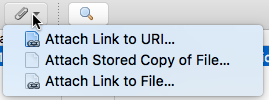
When you have selected a single item in the center pane, you can click the “Add Attachment” paperclip button at the top of the center column. Select either “Attached Stored Copy of File…” or “Attach Link to File…” to add files as attachments to the item.
You can also “Attach Link to URI…” to add a link to a web page (http:// or https://) or to another program on your computer (e.g., OneNote onenote:// or Evernote evernote://).
These options are also available when you right-click an item and choose “Add Attachment”.
Accessing Files
Files in your library can be accessed by double-clicking the item in the center pane. Alternatively, you can right-click the item and select “View PDF” or “View File”.
To locate a stored (copied) or linked file, right-click the item in the Zotero pane and select “Show File”. Copied files are stored in the Zotero data directory, and each file has its own subdirectory, which is named with a random 8-character string.
Web Snapshots
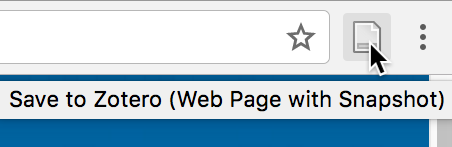
Zotero can archive a webpage by creating a snapshot — an offline file reflecting the state of the page at the time the snapshot was taken. If the Zotero Connector does not recognize data on a page, you can save the page as a Web Page item with an attached snapshot by clicking the Zotero save button in the browser toolbar. You can also take a snapshot of any page by right-clicking (click-and-hold in Safari) on the Zotero save button and choosing “Save to Zotero (Web Page with Snapshot)”.
By default, Zotero will save snapshots when importing items from webpages. You can disable this setting in the Zotero preferences.