CHNM’s Roy Rosenzweig and Josh Greenberg recently talked about Zotero with Matt Pasiewicz of EDUCAUSE at the Fall 2006 Task Force Meeting of the Coalition for Networked Information (CNI). The interview is now available as an audio recording online. Listen in as Roy and Josh discuss everything from microformats to tagging to the Semantic Web. The 15-minute interview also previews some of the up-and-coming social functionality of Zotero 2.0, including recommendation systems and collaborative spaces.
How site translators work
We’ve added new documentation that covers the discrete pieces of code that make it possible for Zotero to automatically grab metadata from the Web. The new guide will be of interest both to developers who wish to write their own translators and to users who just want to know how they work.
Feature spotlight: note-taking
Most users don’t just like to read and gather sources; they like to take notes on them. We’ve all got little scribbles in the margins of books, on post-its, and on notepads (real and virtual). Zotero makes it easy to keep all those annotations, jots, and notes all in one place, and all searchable. And with the recent addition of the ‘grab a chunk of text off the screen’ capability added in the latest version of Zotero, that process has become even easier. Here’s an overview of note-taking to simplify your life.
Reading and Writing
As a scholarly workbench, Zotero reflects a basic understanding of the researcher as a crossbreed between a reader and a writer. Does browsing MIT’s Wearable Computing pages provoke a thought? Does reviewing the presiding judge’s ruling in Bridgeman Art Library v. Corel Corp. spark some insight? Simply open your Zotero pane, click on the “standalone note” icon in the middle column (Figure 1), and type away. No need to cumbersomely switch back and forth between your web browser and a desktop application (Figures 2 and 3).
![]()
Figure 1. Five icons appear at the top of the middle column in the Zotero pane. The yellow square with a plus sign at far right is the “standalone note” icon.

Figure 2. Zotero integrates reading and writing within a single environment. You can resize the Zotero pane by clicking and dragging, thereby revealing more or less of the content in the browser window.

Figure 3. Enlargement of note in right column.
Grabbing Text
Because new research often incorporates pre-existing work, Zotero makes it easy for you to migrate quotable material from a web-based source into your notes. Highlight the relevant text, right-click (ctrl-click on the Mac) to open a pop-up menu, and select “Create Zotero Note from Selection” (Figures 4 and 5). In this way, Zotero facilitates transcription as well as annotation.

Figure 4. Zotero allows you to highlight plaintext and send it to a note.

Figure 5. The copied text appears in the right column of the Zotero pane.
Other Ways to Add Notes
To preserve the connection between source and annotation, first add the source item to your library and then either right-click on the title (ctrl-click on a Mac) in the middle column, choosing “add note” from the pop-up menu (Figure 6), or click on the note tab in the right column and select “Add” (Figure 7). If you return to the note later, you have the choice of editing it in the right column or in a separate window (Figure 8 ).

Figure 6. To associate a note with a specific item, right-click on the title of the relevant item in the middle column and select “Add Note” from the pop-up menu.

Figure 7. Another way to associate a note with an item is to click on the title in the middle column, select the “Notes” tab in the right column, and then click “Add.”

Figure 8. You can edit a note in the right column of your Zotero pane or, as shown here, in a separate window.
“Related” and “Tags” Options
You can cross-reference other items in your library by clicking the “Related” option in the bottom left corner of the note window (Figure 3). Doing so will open a menu from which you can choose a related reference, note, snapshot, or file. To select more than one, hold down the shift key and click all relevant items. Several notes can be appended to each item, all of them searchable. You can also add tags to notes by clicking “Tags” in the bottom left corner of the Note window (Figure 3).
Deleting a Note
Clicking on the minus sign that appears next to a note in the right column will delete it (Figure 9), as will right-clicking on the note icon (ctrl-clicking on the Mac) in the middle column and then selecting “Delete Selected Item from Library” (Figure 10).

Figure 9. Delete a note by clicking on the minus sign.

Figure 10. Delete a note by selecting “Delete Selected Item” from pop-up menu.
Find Out More
To learn more about Zotero’s capabilities, visit our online documentation, or check out Steve Bailey’s screencast.
New translator for Google Book Search
We have modified our translator for Google Books, which received a major update last week. Zotero users can now automatically grab metadata from the site while enjoying Google Books’ new browsing interface. You can read full-view books in two-page mode, for example, while taking notes in Zotero.
Interested in knowing what other databases, library catalogs, and online resources are compatible with Zotero? Visit our list of supported sites. If there are additional site translators you would like to see, please let us know.
Rosenzweig, Cohen, and Greenberg to present on Zotero
CHNM’s Roy Rosenzweig, Daniel Cohen, and Joshua Greenberg are presenting an introduction to Zotero at the bi-annual Task Force Meeting of the Coalition for Networked Information in Washington, D. C. on Tuesday, December 5 from 1-2 pm. For registration, contact, and other information, please visit the CNI conference homepage.
Coalition for Networked Information
Tuesday, December 5, 1-2 pm
Renaissance Washington D. C. Hotel
Renaissance West
“Introduction to Zotero”
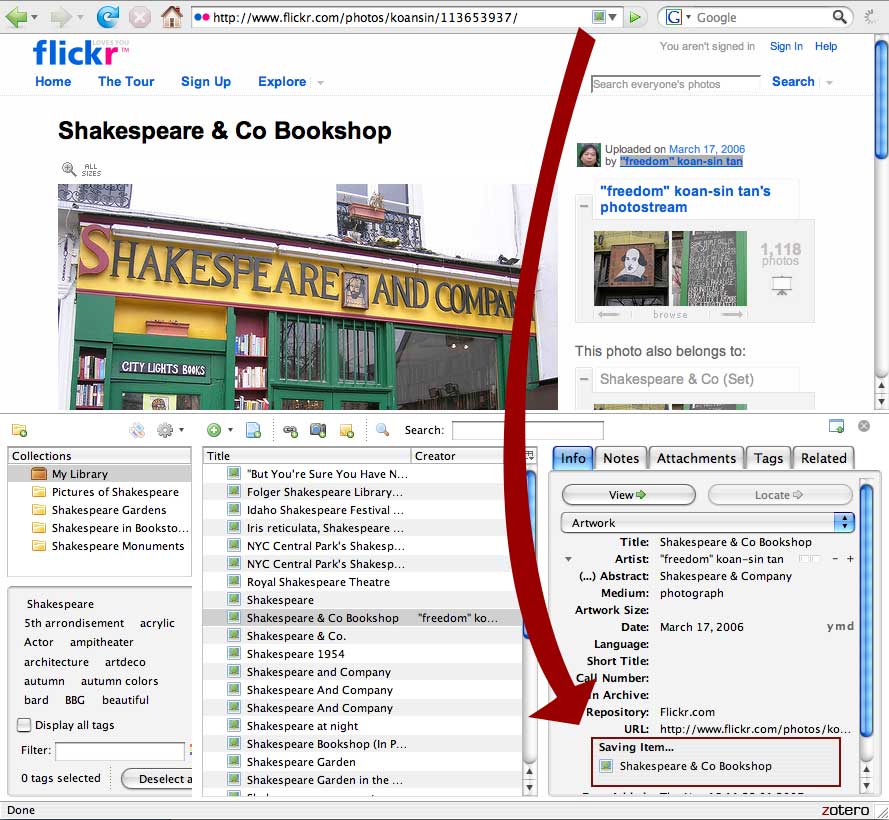
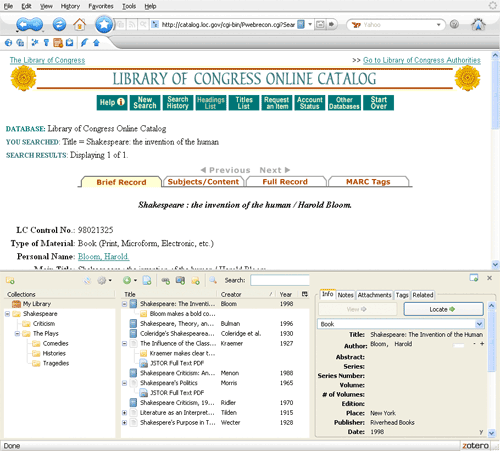
The Center for History and New Media has just released Zotero 1.0, a next-generation scholarly research tool that runs in the Firefox web browser. On a very basic level, Zotero stores references and notes (like EndNote or other citation managers). But since it lives in the browser and is web-aware, Zotero is able to provide a number of innovative features, such as the ability to sense, record, and share scholarly metadata on the web. For instance, when you are viewing the web page for a book (e.g., on a library’s website or at Amazon.com) Zotero understands that you are looking at a book and can offer to save its full citation information. Zotero has native support for promising new web technologies, including OpenURL, embedded microformats, RDF, and a variety of XML data-exchange formats. In addition, Zotero has “smart folder” and “smart search” technology and other advanced features such as tagging. The 1.0 release of Zotero is just the beginning of what we believe will be a powerful, open, extensible platform for scholarly research. We plan to provide features to greatly enhance collaboration and autodiscovery—such as the ability to share and collaboratively construct bibliographies and notes, and find new books and articles that might be of interest based on what you’ve already saved to your library (using a server-based recommendation system). And like Firefox itself, other researchers and software developers will be able to expand Zotero with digital tools for visualization, text analysis, document classification, and translation (to name just a few possibilities). We will provide a demonstration and technical overview of the software, and we will explain how various pieces of the Zotero—such as its robust tagging and search capabilities—can be combined with other software (on both the client- and server-side) to create novel forms of research, interpretation, and communication.
Archives
- April 2016
- March 2016
- September 2015
- June 2015
- May 2014
- April 2014
- October 2013
- May 2013
- April 2013
- November 2012
- September 2012
- April 2012
- January 2012
- September 2011
- August 2011
- July 2011
- June 2011
- April 2011
- March 2011
- February 2011
- January 2011
- October 2010
- September 2010
- August 2010
- May 2010
- April 2010
- March 2010
- January 2010
- December 2009
- October 2009
- June 2009
- May 2009
- April 2009
- March 2009
- February 2009
- January 2009
- December 2008
- November 2008
- October 2008
- September 2008
- August 2008
- July 2008
- June 2008
- May 2008
- April 2008
- March 2008
- February 2008
- January 2008
- December 2007
- November 2007
- October 2007
- September 2007
- August 2007
- July 2007
- June 2007
- May 2007
- April 2007
- March 2007
- February 2007
- January 2007
- December 2006
- November 2006
- October 2006

Upgrade Storage