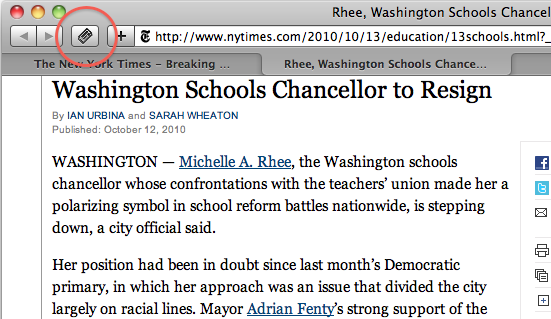
For those of you who’ve been craving alternative methods for accessing a Zotero library as well as more news on Zotero Everywhere, we are pleased to announce that the time has finally arrived. A breakdown of new Zotero Everywhere alpha releases follows:
Zotero Standalone: For the Desktop
We are proud to announce the alpha release of Zotero Standalone, a new version of Zotero that runs as its own application on Mac OS X, Windows, and Linux. In layman’s terms: This is a test version of a desktop client, which means you don’t need to have the Zotero Firefox extension open to view your library. Very little has changed from the Firefox client to Standalone in terms of how you interact with your items; the client looks the same, as if it’s been popped out of the browser window. You still annotate, tag and highlight items in your Standalone client. You create notes, just as you did before. Similarly, citations and bibliographic data associated with your items can be written within Standalone and ported to MS Word or any text editing application, yet you don’t need to separately download the MS Word plugin because it’s already bundled in the Standalone package. The Zotero Standalone download is available here.
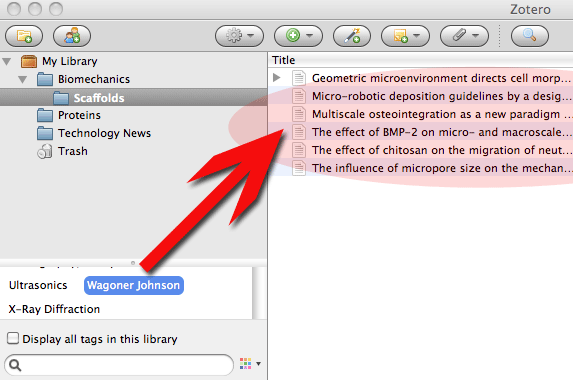
Zotero Standalone Alpha : The Zotero Standalone Alpha application looks the same as the Firefox version and shares most of its functionalities. Here, we filtered our Scaffolds subcollection to only show items tagged with the author name “Wagoner Johnson.”
Data Sharing
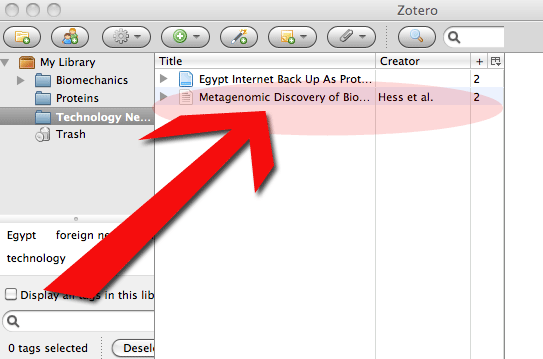
Zotero Standalone shares a data directory with Zotero for Firefox by default, so any items saved via the Firefox extension are saved in Standalone, and vice versa. You’ll see any changes you make in one client reflected in the other client’s library the next time you open it. (Currently, you cannot have both open at once.)
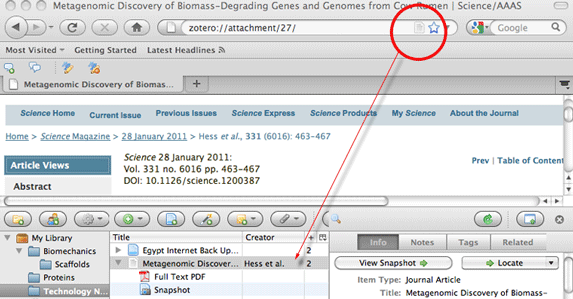
…automatically appears in your Standalone library the next time you open it, and vice versa.
No longer just for Firefox
Zotero Standalone Alpha works not only with Firefox but also with the Chrome and Safari browsers via browser-specific plugins, now available in alpha versions for download on the same page. Note that these plugins are currently in development and are being debugged, so you won’t see the full range of their functionality immediately.
Notes and Caveats
I know the words “test” and “alpha” appear copiously throughout this post, but that’s because it’s important to remember that Zotero Standalone and the associated browser plugins are under active development and, like all test phase software, there are still kinks being worked out. All Zotero test-phase software must be used responsibly at this stage because, if you’re a current Zotero user, we don’t want anything happening to the data living in your stable Zotero library (v.2.0.9). If you aren’t comfortable running early-stage software or are in the middle of an important project, we strongly recommend that you use the latest stable version of Zotero 2.0 for Firefox, available for download from Zotero’s home page.
If your appetite to test out Standalone is sufficiently whetted and you just can’t turn back now, please continue reading.
1) Create a new Firefox profile to run Standalone: Zotero Standalone Alpha is currently database-compatible with Zotero 2.1 Beta for Firefox, but not with Zotero 2.0.9 for Firefox. As mentioned before, Zotero for Firefox and Standalone can share a data directory. It is not possible, however, for the stable Firefox version (2.0.9) to interact with a data directory from a later version (in this case Standalone, which operates as 2.1). Therefore, we advise setting up a separate Firefox profile to experiment with Standalone. Here’s a link that explains how to create multiple Firefox profiles.
2) Standalone runs only on certain platforms and in certain configurations for the time being (eg. only Zotero 2.1 Beta for Firefox can be synced with Standalone, Standalone only runs on Mac OS X 10.6 and higher, and so on.) See the Zotero Standalone page for more info.
3) Certain functionality is not present yet in alpha versions. Some buttons that you see in Firefox (eg., “Save item from Current Page”) are not present in Standalone at the time of this writing. Similarly, the Safari connector may not be able to sense some sites with Zotero translators. These are issues and functionality being hashed out by developers, and we will keep you updated as things progress.
4) Keep up with Zotero documentation, Standalone changelog, Twitter, and the forums. When you’re working with software under active development, it’s a good idea to keep up with bug reports, questions other community members are asking, what developers are saying, and so on. Also, posting to the forums is a great way to be a part of the development discourse.
Thank you for all the feedback you have already provided regarding this new release. It’s community involvement and contributions that help make Zotero great. We look forward to bringing you more Zotero Everywhere news very soon.