We’re thrilled to announce the release of Zotero 6, the next major version of Zotero and the biggest upgrade in Zotero’s history. Zotero 6 introduces an array of new features to transform how you do research, including a completely new way of working with PDFs and notes.
PDF Reader and New Note Editor
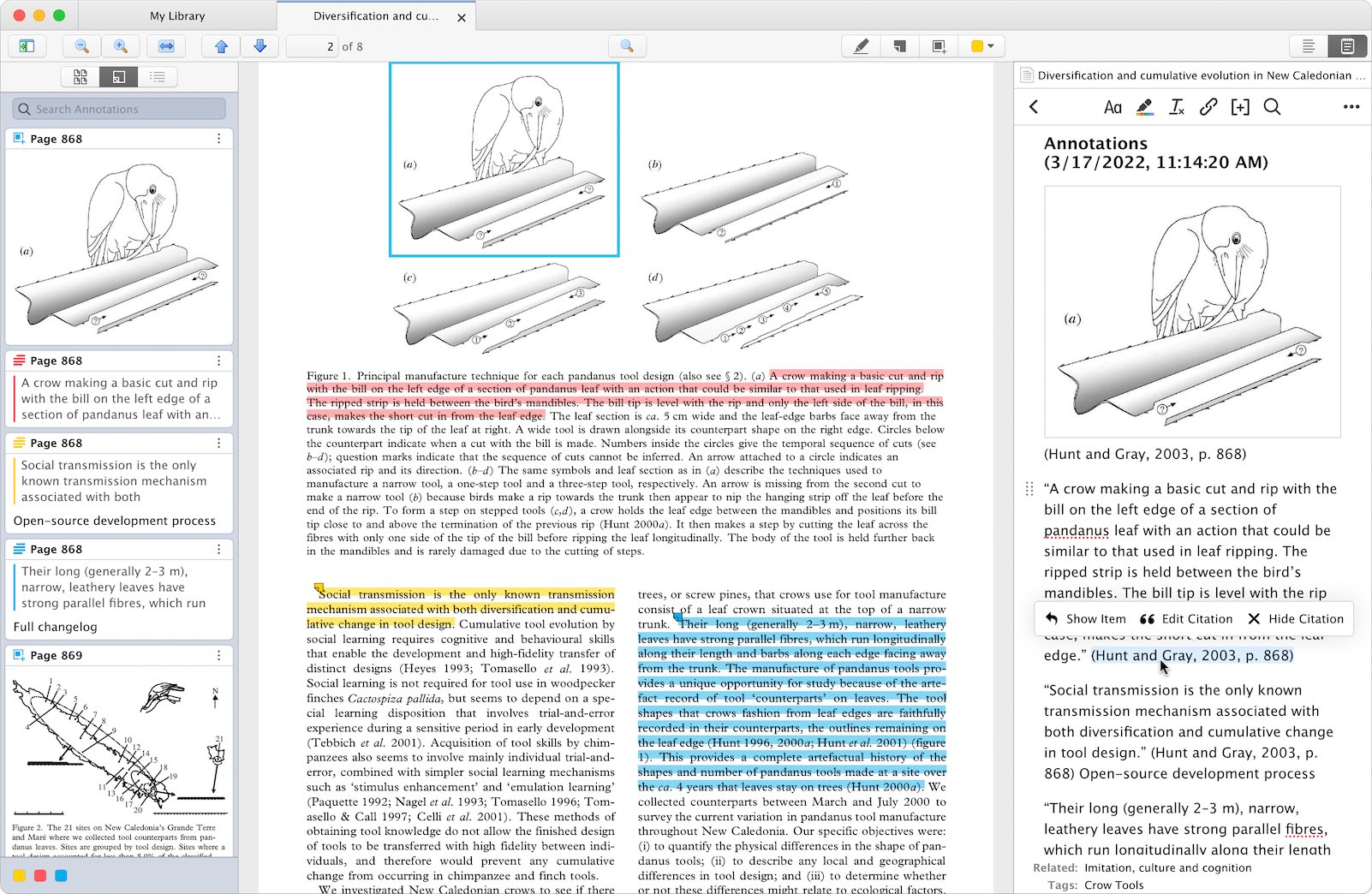
With Zotero 6, you can now:
- Open PDFs in a new built-in reader within the main Zotero window, in a new tabbed interface
- Clean up metadata for items while viewing your PDFs
- Mark up PDFs with highlights, notes, and image annotations
- Add annotations to Zotero notes with automatic citations, in a powerful new note editor
- Cite other items directly in notes using Zotero’s familiar citation dialog
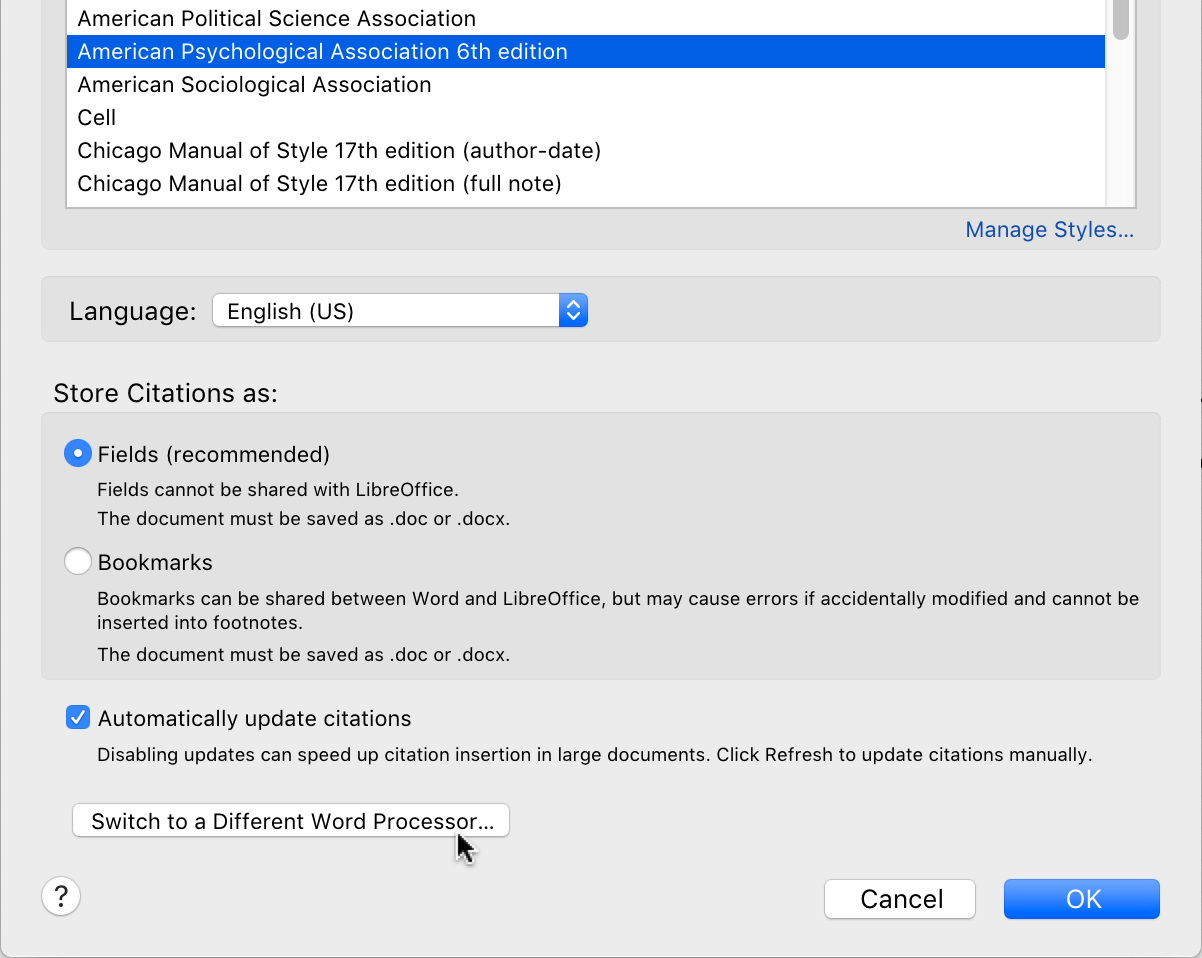
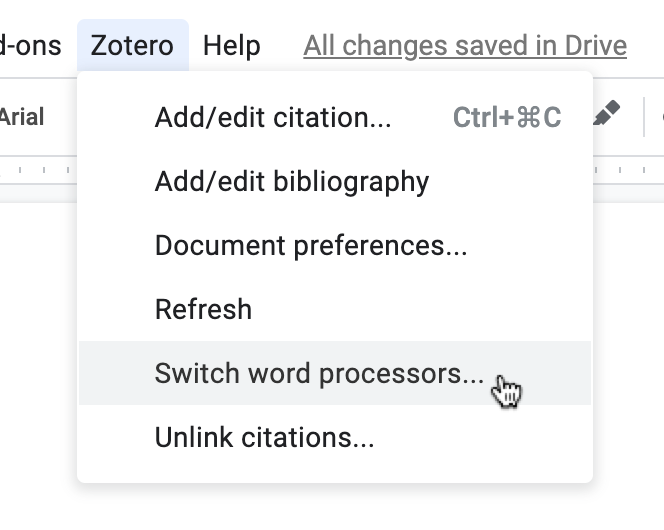
- Insert notes into your Word, LibreOffice, and Google Docs documents with active Zotero citations for automatically generating bibliographies
- Export notes to external Markdown editors with links back to Zotero items and PDFs
Together with Zotero’s powerful saving abilities and word processor plugins, Zotero can now help you with the entire path from an interesting item online to a cited quote in your final document.
Seamless Annotation Syncing
Like all Zotero library data, the annotations you create will automatically sync across all your Zotero devices. There’s no need to close a PDF on one computer or worry about losing annotations due to sync conflicts.
In addition to annotating your own files, you can also create PDF annotations in group libraries, allowing you to collaboratively mark up PDFs with other group members and immediately see each other’s changes.
Zotero’s PDF reader syncs with our new Zotero iOS app, allowing you to highlight and take notes on your iPad or iPhone and then quickly pull those annotations into a note or word processor document when you’re back at your computer. You can even view ink annotations made with an Apple Pencil.
PDFs will open automatically to your current page, no matter what device you last used.
Annotations in Notes
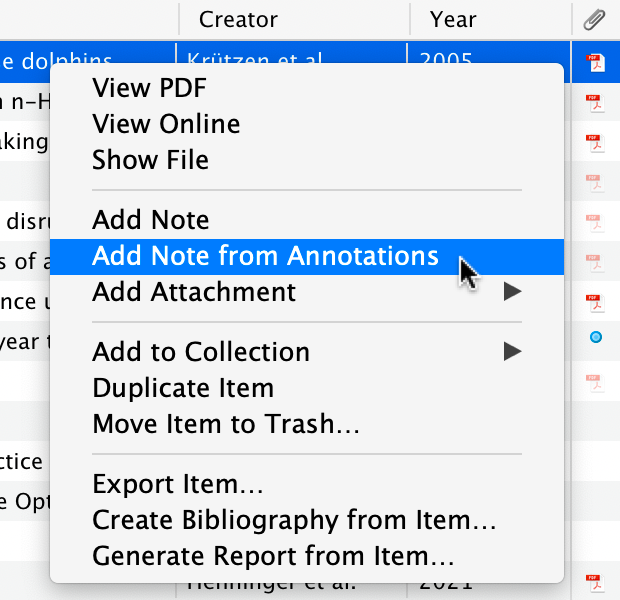 After you’ve marked up a PDF, you can quickly add some or all annotations to a Zotero note.
Annotations added to notes aren’t just plain text: they include information about the source PDF that lets you quickly jump back to the original page to see context, generate bibliography entries using Zotero’s word processor plugins, toggle annotation colors on and off, include links back to Zotero when exporting to Markdown, and even restore accidentally deleted citations to make sure you’ve properly attributed a quote.
With note templates, you can customize the format of the annotations you add.
If you previously used the ZotFile extension to extract PDF annotations to Zotero notes, you can now use Zotero directly and benefit from these new features.
Adding Notes to Word Processors
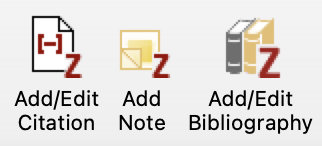 When using one of the Zotero word processor plugins, a new “Add Note” button lets you insert any Zotero note directly into the document. Citations in the note, including those generated from PDF annotations, will remain active, so they’ll automatically be added to your bibliography.
Markdown Export
Notes now have their own Quick Copy setting, with a choice between Markdown + Rich Text or raw HTML. You can copy or drag notes from the items list, or even individual annotations from the PDF reader, directly to an external editor, with Markdown links back to the item and PDF page associated with annotations.

Embedded Images in Notes
Zotero notes now support embedded images. You can drag in images from your computer or the web, and they’ll sync to your other devices. You can even create an image annotation in the PDF reader and drag it straight into a note to create a cited image in your document.
Additional Zotero 6 Features
Zotero 6 also continues to refine Zotero’s existing functionality and addresses some popular feature requests.
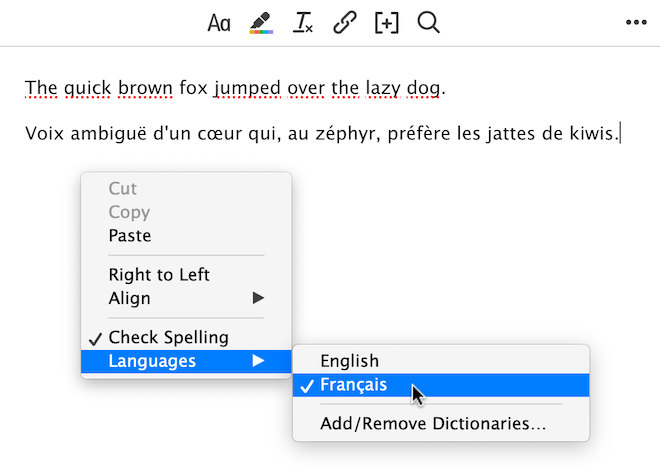
Non-English Spellchecking
If you write in a language other than English, you can now add over 40 dictionaries for spellchecking in Zotero notes. No more red squiggly lines!
Improved Mendeley and Citavi Import
If you’re currently a Mendeley user (or know one), Zotero’s built-in Mendeley importer will now import Mendeley annotations for use in the new PDF reader. And a new import process allows you to import your Mendeley data directly from the online library (despite the database encryption added by Elsevier that made it impossible to import from a local copy of your own Mendeley library).
Importing from Citavi will now bring in Citavi PDF annotations.
Bundled Safari Extension
For Mac users running Big Sur or later, the Zotero Connector for Safari is now bundled with Zotero and can be enabled from the Extensions pane of the Safari preferences.
Other Changes
For the full list of changes in Zotero 6, see the changelog.
Get Zotero 6
If you’re already running Zotero, you can upgrade from within Zotero by going to Help → “Check for Updates…”.
Don’t yet have Zotero? Get it now from the download page.