Table of Contents
Using the Zotero Word Plugin
These are instructions for using the Zotero Word Plugin. For plugins for LibreOffice or Google Docs, see Word Processor Plugins.
Zotero Plugin Tab
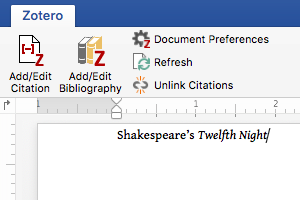
Installing the Zotero Word plugin adds a Zotero tab to Microsoft Word. (In Word 2008 for Mac the script menu is used.)
The Zotero tab contains these icons:
| Add/Edit Citation |  | Add a new citation or edit an existing citation in your document at the cursor location. |
|---|---|---|
| Add/Edit Bibliography |  | Insert a bibliography at the cursor location or edit an existing bibliography. |
| Document Preferences |  | Open the Document Preferences window, e.g. to change the citation style. |
| Refresh |  | Refresh all citations and the bibliography, updating any item metadata that has changed in your Zotero library. |
| Unlink Citations |  | Unlink Zotero citations in the document by removing the field codes. This prevents any further automatic updates of the citations and bibliographies. Note that removing field codes is irreversible, and should usually only be done in a final copy of your document. |
Citing
You can begin citing with Zotero by clicking the “Add/Edit Citation” ( ) button. Pressing the button brings up the citation dialog.
The citation dialog is used to select items from your Zotero library, and create a citation.

Start typing part of a title, the last names of one or more authors, and/or a year in the dialog box. Matching items will instantly appear below the dialog box.
Matching items will be shown for each library in your Zotero database (My Library and any groups you are part of). Items you have already cited in the document will be shown at the top of the list under “Cited”.
Select an item by clicking on it or by pressing Enter/Return when it is highlighted. The item will appear in the dialog box in a shaded bubble. Press Enter/Return again to insert the citation and close the Add Citation box.
In the Add Citation dialog box, you can click on the bubble for a cited item, then click “Open in My Library (or the Group Library's name)” to view the item in Zotero. Items that are orphaned (not connected to any items in your Zotero database) will not have an “Open in My Library” button. Orphaned items can exist if they were inserted by a collaborator from their My Library or a group you don't have access to or if you they were deleted from your Zotero library.
Bibliography
Clicking the “Add/Edit Bibliography” ( ) button inserts a bibliography at the cursor location.
As you use the plugin, Zotero will automatically update the bibliography based on the citations in the document.
In the rare case that you want to add items to the bibliography that you haven't cited in the document, you can click “Add/Edit Bibliography” button again, which will open the bibliography editor. Manual edits made to the bibliography in Word will be overwritten the next time Zotero refreshes the document.
Document Preferences

The “Document Preferences” window lets you set the following document-specific preferences:
- The citation style.
- The language to use to format citations and bibliography.
- For note-based styles (e.g., “Chicago Manual of Style (Note)”), whether citations are inserted in footnotes or endnotes.
- Note that Word, not Zotero, controls the style and format of footnotes and endnotes.
- Whether to store citations as Fields or Bookmarks.
- Unless you need to collaborate with colleagues using LibreOffice, you should always choose Fields.
- For styles that abbreviate journal titles (e.g., “Nature”), whether to use the MEDLINE abbreviations list to abbreviate titles.
- If this option is selected (the default), the contents of the “Journal Abbr” field in Zotero will be ignored.
Customizing Cites
Citations can be customized in various ways.
If a citation is simply incorrect or missing data, start by making sure that the item metadata in Zotero is correct and complete, and then click Refresh in the plugin to update your document with any changes.
Other customizations can be made via the citation dialog. Click an existing citation in your document and click Add/Edit Citation to open the citation dialog, and then click the citation bubble to open the cite options window, where you can make the following changes.
Page and Other Locators
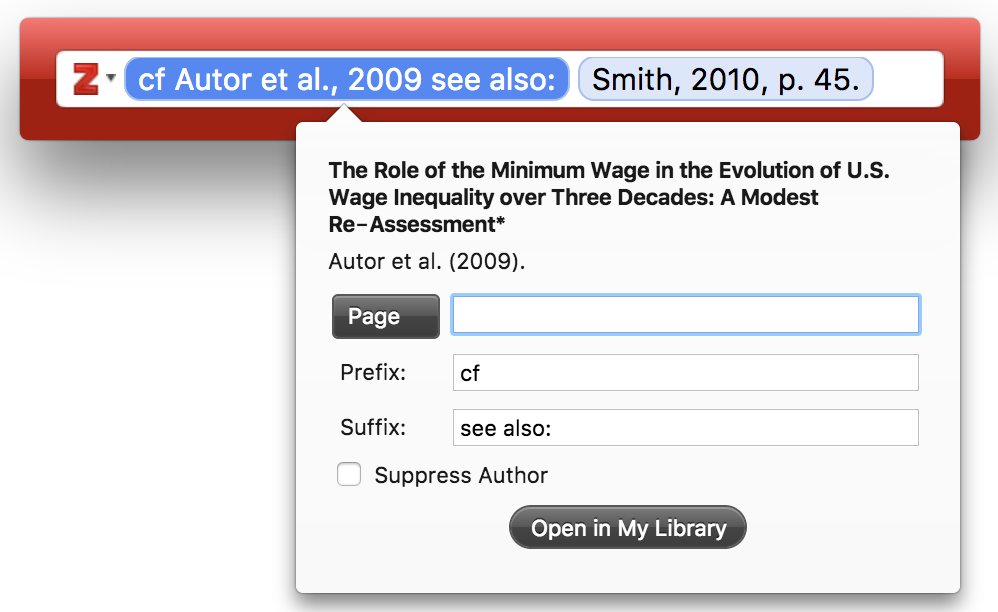
In some cases you want to cite a certain part of an item, e.g. a certain page, page range or volume. This additional cite-specific information (e.g. “pp. 4-7” in the cite “Doe et al. 2001, p. 4-7”) is called the “locator”.
The cite options windows has a drop-down list of the different locator types (“Page” is the default), and a text box in which you can enter the locator value (e.g. “4-7”). To cite a locator other than the ones listed (e.g., “Table), use the Suffix field.
You can also add page numbers from the keyboard as you insert citations. Search for an item and, before or after selecting it, but before pressing Enter to insert the citation into the document, type “p.34”, “p34”, or even just “34”. The page number will be added to the citation.
Prefix and Suffix
The “Prefix” and “Suffix” text boxes allow you to specify text to respectively precede and follow the automatically generated cite. For example, instead of “Tribe 1999”, you might want “cf. Tribe 1999, see also…”.
Any text in the prefix and suffix fields can be formatted with the HTML tags <i> (for italics), <b> (bold), <sub> (subscript), and <sup> (superscript). For example, typing ”<i>cf</i>. the classic example“ will be displayed as ”cf. the classic example“.
Prefixes and suffixes can be applied to each item in a citation to create complex citations. For example: ”(see Smith 1776 for the classic example; Marx 1867 presents and alternate view)“. Modifying citations by entering text into the Prefix and Suffix fields is always preferable to directly typing in the citation fields in Word. Manual modifications will prevent Zotero from automatically updating the citation.
Narrative Citations with Omit Author ("According to Smith (1776)")
With author-date styles, authors are often moved into the text and omitted from the following parentheses-enclosed citation, e.g.: “According to Smith (1776), the division of labor is crucial…”. To omit the authors from the cite, check the “Omit Author” box, which will result in a cite like ”(1776)“ instead of ”(Smith, 1776)“, and write the author's name (“Smith”) as part of the regular text in your document.
Citations with Multiple Cited Items

To create a citation containing multiple cites (e.g., ”[2,4-6]“ for numeric styles or ”(Smith 1776, Schumpeter 1962)“ for author-date styles), add them one after the other in the Add Citation box. After selecting the first item, don't press Enter/Return, but type the author, title, or year of the next item.
Some citation styles require that items within one in-text citations are ordered either alphabetically (e.g., ”(Doe 2000, Grey 1994, Smith 2008)“) or chronologically (”(Grey 1994, Doe 2000, Smith 2008)“). Zotero will follow these sort rules automatically.
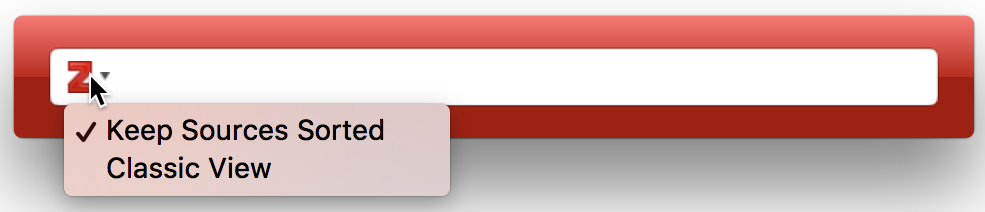
- To disable automatic sorting of the cites in the citation, drag the citations to rearrange them in the Add Citation box. You can also click the “Z” icon on the left side of the Add Citation box and uncheck the “Keep Sources Sorted” option. This option only appears for citation styles that specify a sort order for citations. To restore automatic sorting, re-check the “Keep Sources Sorted” option.
Switching to the "Classic View"
You can switch to the "Classic View" citation dialog by clicking the “Z” icon on the left side of the Citation box, and selecting “Classic View”. To permanently switch to the classic view check the “Use classic Add Citation view” checkbox in the Cite pane of Zotero preferences.
Other Changes
If your citation still isn't displaying the way you want, you can edit the citation directly in your document, but note that doing so will prevent Zotero from being able to automatically update the citation to reflect other changes in the document (e.g., for 'ibid.' or given name disambiguation). After you make a manual edit, Zotero will ask you to confirm that you want to keep the edit and prevent the citation from being updated automatically going forward. It may be preferable to instead make notes in the text of changes you want to make, wait until you're ready to submit the document, and make the changes in a copy of the document after using Unlink Citations.
If you believe there's an error in a citation style, post to the Zotero Forums so that we can investigate and, if necessary, correct the style. If a style is updated, your document will automatically update to reflect any changes the next time you refresh the document.
Editing the Bibliography
As you add and remove citations in the document, Zotero will automatically update the bibliography to reflect your changes. Generally, that's all you have to do.
In rare cases, however, you may want to add uncited sources to your bibliography (e.g., items included in a review but not cited in the paper) or remove items that are cited in text but which should not be included in the bibliography (e.g., personal communications). To do this, click the “Add/Edit Bibliography” () button again to open the Edit Bibliography window:

You can then use the arrows to add or remove items.
While it is also possible to edit the text or formatting of bibliography references in this window, doing so is discouraged. References edited here will not be automatically updated by Zotero if you change the data in your library. Editing references here is also somewhat unreliable; several users have reported that modifications made here sometimes do not persist when Zotero references, among other issues.
If you need to edit items in your bibliography, it is best to do this as a final step before submitting the document. First, save a backup copy of the document. Then, click the “Unlink Citations” button () to disconnect your document from Zotero and convert all citations and the bibliography to regular text. Finally, make your adjustments to the bibliography text.
This process can be used for a variety of minor modifications to the bibliography, including:
- Adding asterisks * before references included in a review or meta-analysis
- Setting the names of particular authors in bold, italics, or all caps
- Adding annotations or comments about an item
- Adding headings for bibliography subsections (e.g., primary versus secondary sources)
Note: General corrections to style formatting should be made in the CSL Citation Style, not here. Corrections to item data should be made in your Zotero library, not here.
Keyboard Commands
The Zotero Word plugin can be used with just the keyboard for improved accessibility and faster use.
- Keyboard shortcuts can be set up for all the buttons in the Zotero tab.
- In the Citation dialog
- Use the up and down arrow keys to move between search results. Press Enter to select an item.
- Type “p.45-48” or ”:45-48“ after a citation to cite a specific page or page range.
- Type “ibid” to automatically select the last cited work. This works with all citation styles, regardless of whether “ibid” is actually used in citations. If you use Zotero in a language other than English, use the corresponding abbreviation instead of ibid., e.g. “ebd.” in German.
- Press Ctrl/Cmd-↓ (down arrow key) to open the cite options dialog for the citation selected with the cursor. Use Tab and Shift-Tab to move between the different elements, use the up and down arrow keys to change the locator type in the locator drop-down list, and the space bar to toggle the “Suppress Author” checkbox.
Troubleshooting
If you run into problems while trying to use the Zotero Word plugin, make sure to check out the word processor plugin troubleshooting page.